
What Is Page Speed Optimization?
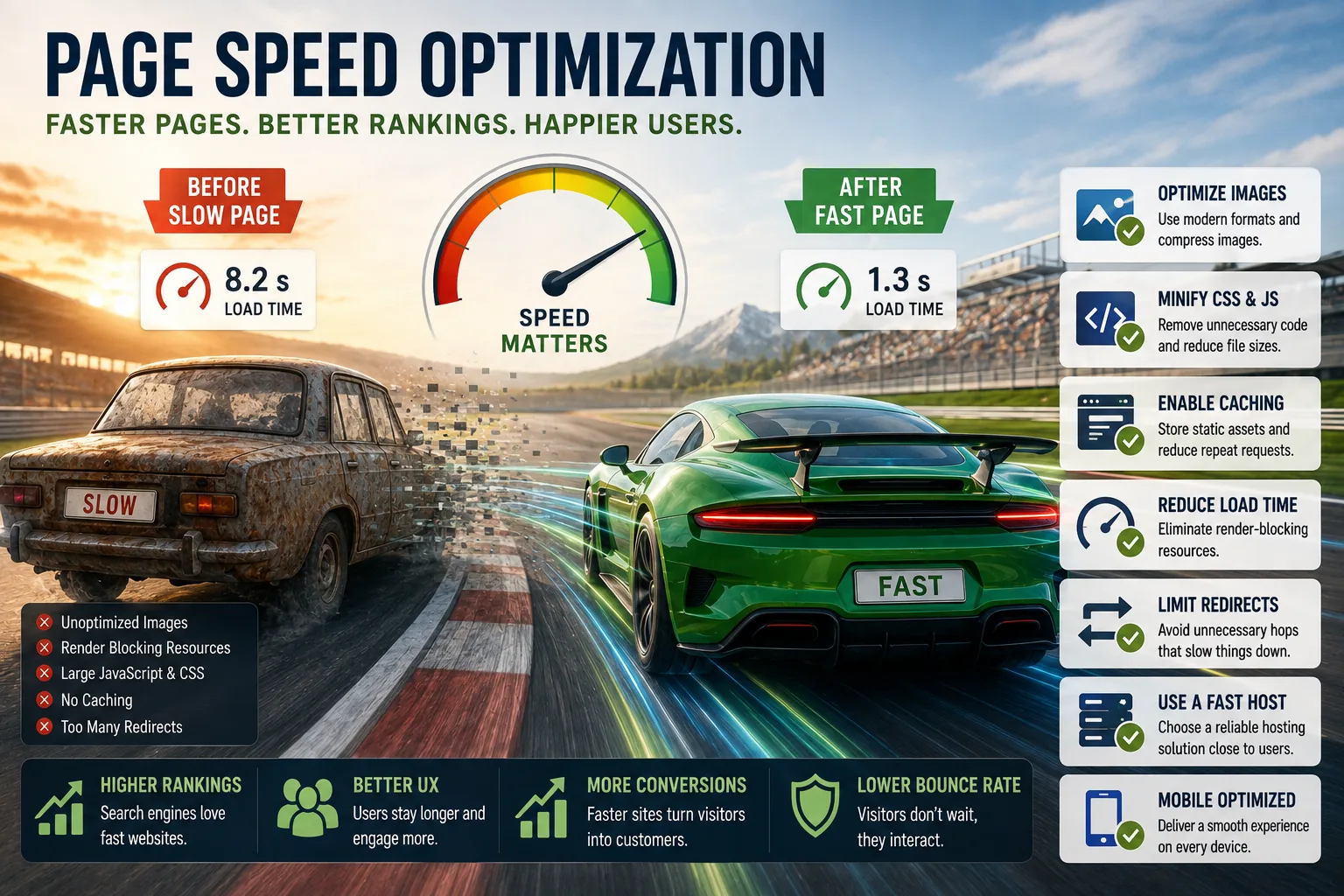
Page speed optimization is the practice of reducing the time required for a web page to load and become fully interactive for users, through improvements to server response times, resource delivery, code efficiency, and rendering behavior.
It matters because loading time has a measurable and consistent effect on user behavior: users abandon slow pages, search engines factor speed into rankings, and even sub-second delays produce statistically significant reductions in conversions.
Optimization addresses a layered set of causes - network latency, server processing, asset size, render-blocking resources, and browser parsing - each requiring different technical interventions.
In 2006, Greg Linden, an Amazon engineer, wrote a blog post describing an internal experiment that had become folklore at the company.[9]
A small change to the Amazon home page - adding a feature that showed recommendations before users had finished their search - had been proposed, tested, and nearly canceled after the initial test showed it was slowing the page by 100 milliseconds.
The team argued the feature was valuable. The experiment team argued that 100 milliseconds of delay cost Amazon sales. The data, ultimately, supported the experiment team.
Linden's post noted that a 100-millisecond delay - one tenth of a second, a duration imperceptible to conscious awareness - affected conversion rates meaningfully enough to appear in controlled data.
This observation became the most cited finding in web performance research: that the relationship between loading speed and user behavior is more sensitive than most people intuit.
Subsequent research across many companies confirmed and extended the pattern. Google documented that a 500-millisecond increase in search result generation time reduced traffic by 20%. Walmart found that each 1-second improvement in page load time increased conversions by 2%.
A study by Deloitte found that a 0.1-second improvement in site speed increased consumer spending by almost 10%.[10] The pattern held across industries and continued to hold as network speeds improved - because user expectations improved along with network speeds.
Web performance matters because users leave slow pages. They leave faster than they consciously realize they are leaving. By the time a user can articulate "this page is slow," they have already left in many cases.
Understanding what makes pages slow, and how to address each cause systematically, is the technical foundation of this improvement.
The Architecture of Page Loading
To optimize page loading, you need a mental model of what happens between a user typing a URL and a page being fully usable. This sequence reveals where time is spent and where optimization can reduce it.
The Network Journey
When a browser requests a page, it first resolves the domain name to an IP address through DNS lookup - typically 20-120ms for a fresh lookup.
The browser then establishes a TCP connection to the server, which involves a handshake exchanging several network round trips - adding latency proportional to geographic distance. If the connection is HTTPS (which all modern sites should be), an additional TLS handshake adds more round trips.
Once connected, the browser sends the HTTP request for the page. The server processes the request - potentially involving application logic, database queries, and template rendering - and sends back the response. The time from request to first byte of response is Time to First Byte (TTFB).
TTFB under 600ms is the target. Slow TTFB indicates server-side problems: slow database queries, insufficient compute resources, no server-side caching, or geographic distance between server and user.
The Browser Rendering Pipeline
After receiving the HTML response, the browser parses it and begins constructing the Document Object Model (DOM). While parsing HTML, the browser encounters references to external resources: CSS files, JavaScript files, images, fonts, and more. Each external resource requires an additional network request.
CSS is render-blocking. When the browser encounters a <link> tag for a stylesheet, it must download and parse that CSS before rendering the page - because CSS determines how everything looks. A CSS file that takes 300ms to download delays the first render by 300ms.
Blocking JavaScript halts everything. A <script> tag without async or defer attributes stops HTML parsing completely until the script is downloaded, parsed, and executed. During this time, nothing renders. A JavaScript file that takes 500ms to download and 200ms to execute delays rendering by 700ms.
This sequence - HTML parsing, resource discovery, resource download, CSS/JS processing, then rendering - is called the critical rendering path. Every optimization to the critical rendering path reduces how long users wait before seeing content.
The Core Web Vitals Framework
Google's Core Web Vitals, introduced in 2020 and confirmed as ranking factors in 2021, provide a standardized set of performance metrics that correlate with user experience:[2]
Largest Contentful Paint (LCP) measures when the largest visible content element (typically the hero image or the main heading) finishes loading. LCP under 2.5 seconds is "good." LCP over 4 seconds is "poor." This metric reflects how quickly the page becomes visually complete for the user.
Interaction to Next Paint (INP), which replaced First Input Delay in 2024, measures the time from user input (click, tap, keypress) to the next visual update. INP under 200ms is good; over 500ms is poor. This reflects how responsive the page feels to interaction.
Cumulative Layout Shift (CLS) measures visual instability - how much page content moves around as the page loads. A score under 0.1 is good.
Text that jumps when images load, buttons that move as ads appear, and forms that shift as fonts load all contribute to poor CLS and create the frustrating experience of accidentally clicking the wrong thing because the page moved.
These three metrics represent the aspects of page experience that correlate most strongly with user satisfaction: does the page become visually complete quickly, does it respond to interaction immediately, and does it remain stable as it loads?
"A 100-millisecond delay - one tenth of a second, a duration imperceptible to conscious awareness - affected conversion rates meaningfully enough to appear in controlled data. The relationship between loading speed and user behavior is more sensitive than most people intuit." - Greg Linden, Amazon engineer
| Core Web Vital | Metric | Good Threshold | Poor Threshold | What It Measures |
|---|---|---|---|---|
| Largest Contentful Paint (LCP) | Loading | < 2.5 seconds | > 4 seconds | Visual completeness |
| Interaction to Next Paint (INP) | Interactivity | < 200ms | > 500ms | Response to user input |
| Cumulative Layout Shift (CLS) | Visual Stability | < 0.1 | > 0.25 | Content stability during load |
| Time to First Byte (TTFB) | Server response | < 600ms | > 1800ms | Server and CDN performance |
| First Contentful Paint (FCP) | Loading | < 1.8 seconds | > 3 seconds | First visible content |
Image Optimization: The Highest-Return Investment
For most websites, images are the single largest contributor to page weight. The HTTP Archive's 2024 Web Almanac found that images represent 46% of total byte transfer on the median mobile web page.
Optimizing images is consistently the highest-return performance investment because the gains are large and the techniques are well-established.
Format Selection
The choice of image format is the most impactful single decision in image optimization:
WebP produces files 25-35% smaller than JPEG at equivalent visual quality.[6] It has been supported by all major browsers since 2020. For photographs, product images, and any complex imagery on a website, WebP should be the default format.
AVIF is newer and provides even more aggressive compression - files 50% smaller than equivalent JPEG quality, with excellent perceptual quality. Browser support reached broad availability in 2022-2023. The combination of AVIF as primary with WebP as fallback maximizes compression:
<picture>
  <source srcset="image.avif" type="image/avif">
  <source srcset="image.webp" type="image/webp">
  <img src="image.jpg" alt="Descriptive alt text">
</picture>
SVG for logos, icons, and diagrams.
Vector format means perfect sharpness at any size, and simple SVGs are often just a few hundred bytes. A company logo that would be 40 KB as a PNG might be 2 KB as SVG.
PNG for images that require hard-edged transparency (logos with transparent backgrounds, screenshots with UI elements). For everything else, WebP or AVIF are superior.
Continuing to use JPEG for all photography and PNG for everything else, as many websites do, leaves significant performance gains unrealized.
Compression
Within any format, images can be compressed more aggressively than most tools apply by default. JPEG quality settings of 85 are typically the default; quality 70-75 is visually indistinguishable for most web viewing while producing files 30-40% smaller.
Several tools automate optimized compression: Squoosh (by Google, browser-based and free), ImageOptim (macOS), TinyPNG/TinyJPEG (web service), and Sharp (Node.js library suitable for build pipeline integration).[7]
The most sustainable approach is integrating compression into the build or deployment pipeline, so images are optimized automatically rather than requiring manual processing. This prevents the common situation where images uploaded by content contributors are served at their original camera-output sizes.
Responsive Images: Matching Size to Display
Serving a 2400x1600 pixel image to a mobile user whose screen is 390 pixels wide delivers 90% of the image data immediately to waste. The browser downloads the full image, scales it down for display, and discards the excess pixels.
The HTML srcset and sizes attributes solve this:
<img src="hero-800.webp"
     srcset="hero-400.webp 400w, hero-800.webp 800w, hero-1600.webp 1600w"
     sizes="(max-width: 600px) 400px, (max-width: 1200px) 800px, 1600px"
     alt="Descriptive description of the image"
     width="1600" height="900"
     loading="lazy">
This markup tells the browser the image is available at three sizes (400px, 800px, 1600px wide).
The sizes attribute tells the browser how wide the image will be displayed at different viewport widths. The browser selects the appropriate source file, typically the smallest one that is at least as wide as the display size.
The width and height attributes prevent Cumulative Layout Shift by reserving space for the image before it loads. Without these attributes, the browser does not know how much space to reserve, causing layout shifts when the image arrives.
Lazy Loading
Images that are not visible when a page first loads should not be downloaded immediately. The loading="lazy" attribute, now supported natively by all modern browsers, instructs the browser to defer loading images until they are near the viewport:
<img src="below-fold-image.webp" loading="lazy" alt="Description">This single attribute can reduce the initial page weight of image-heavy pages by 50% or more, because images below the visible area are deferred until the user scrolls near them.
On a page with 20 images, if only 3 are initially visible, lazy loading means only 3 images load on initial page view.
Do not lazy-load above-the-fold images. The hero image, logo, and any images visible before scrolling should load immediately because they are the Largest Contentful Paint candidate. Lazy-loading them delays LCP and degrades the most important performance metric.
JavaScript Optimization: The Most Complex Challenge
JavaScript is the most expensive resource type on the web. A byte of JavaScript costs significantly more than a byte of image data: images are decoded and displayed, while JavaScript must be parsed, compiled, and executed, blocking other browser work during this time.
Eliminating Unused JavaScript
Every JavaScript bundle in production should contain only code that is actually executed. Build tools that analyze imports and eliminate unused code (tree shaking) help, but they cannot help if entire libraries are imported for a small subset of their functionality.
The most common source of JavaScript bloat is importing entire utility libraries when only a few functions are needed. If a codebase uses three functions from Lodash (a utility library with hundreds of functions), importing the entire library adds unnecessary weight.
Importing only the needed functions, or writing those three functions directly, reduces the bundle.
Chrome DevTools' Coverage panel shows, for each JavaScript file, what percentage of the code was executed during a page load. Code that is loaded but never executed is a direct target for elimination.
Code Splitting and Lazy Loading JavaScript
Single-page applications built with React, Vue, or Angular commonly bundle the entire application into one JavaScript file. This means a user visiting the homepage downloads code for the admin dashboard, the settings page, the user profile page, and every other feature - regardless of which page they are visiting.
Code splitting divides this bundle into smaller chunks that are loaded on demand:
// Instead of importing everything upfront:
import { HeavyChart } from './charts';

// Load it only when needed:
const HeavyChart = React.lazy(() => import('./charts'));
Route-based code splitting, automatically applied by Next.js and available through configuration in Create React App and Vite, splits the bundle by page.
Each page's JavaScript loads only when that page is visited.
Script Loading Attributes
The placement and loading attributes of <script> tags determine whether JavaScript blocks rendering:
<script>(no attribute) in the<head>: Blocks HTML parsing. The browser stops parsing HTML, downloads the script, executes it, then resumes parsing. Most destructive to load time.<script async>: Downloads the script in parallel with HTML parsing. Executes immediately when downloaded (may interrupt parsing). Appropriate for completely independent scripts.<script defer>: Downloads in parallel with HTML parsing, executes after parsing is complete. Appropriate for scripts that need the DOM.<script>before</body>: Old workaround for avoiding blocking.deferis the modern, cleaner approach.
Third-party scripts from analytics platforms, advertising networks, chat widgets, and marketing tools deserve particular attention. A single Google Analytics tag, a Facebook pixel, a chat widget, a heatmap tool, and an A/B testing script can collectively add 500ms or more to page loading time.
Each should be loaded asynchronously, and their combined impact should be measured.
JavaScript Execution Performance
Downloading JavaScript faster does not help if execution is slow. Long tasks - JavaScript functions that take more than 50ms to execute - block the browser's main thread, preventing it from responding to user interactions and contributing to poor INP scores.
The Performance panel in Chrome DevTools profiles JavaScript execution, showing which functions take the most time. Long tasks are the primary target for JavaScript execution optimization: breaking them into smaller pieces, deferring non-critical work, or moving work to Web Workers.
CSS Optimization
Critical CSS: Inline What the First View Needs
The CSS needed to render above-the-fold content - the header, hero section, and visible navigation - is called critical CSS. Inlining this CSS directly in the HTML <head> eliminates the network round-trip needed to download the CSS file before the browser can render anything:
<head>
  <style>
    /* Critical CSS inlined here */
    body { font-family: system-ui; margin: 0; }
    .header { background: #fff; height: 64px; }
    /* etc.
*/
  </style>
  <link rel="stylesheet" href="/styles.css" media="print" onload="this.media='all'">
</head>
The non-critical CSS is loaded asynchronously via the media="print" trick (which loads the file without blocking rendering) and promoted to media="all" once loaded.
Tools like Critical and Critters automate extracting critical CSS from a stylesheet based on the content of specific page templates.
Removing Unused CSS
CSS frameworks like Bootstrap and Tailwind CSS are comprehensive - they include styles for every component the framework supports, most of which a given site will not use.
A Tailwind CSS build without purging unused classes is approximately 2.4 MB; with unused classes removed by PurgeCSS or Tailwind's built-in content scanning, it is typically 5-20 KB.
Caching Strategies
Browser Caching
The fastest network request is one that does not happen. Browser caching stores resources on the user's device so they do not need to be re-downloaded on subsequent page views. For a returning visitor, a well-cached site can load in a fraction of the time of a first visit.
The Cache-Control HTTP header controls caching behavior:
For versioned static assets (JavaScript bundles, CSS files, images where the URL includes a hash or version number): Cache-Control: public, max-age=31536000, immutable. This tells browsers to cache for one year and not check for updates.
When the file changes, the URL changes (because the hash changes), so users automatically get the new version.
For HTML pages: Cache-Control: no-cache or short max-age. HTML references the versioned assets, so it needs to stay fresh while the assets can be cached aggressively.
The combination of long-lived asset caching with versioned URLs (cache busting) and fresh HTML is the standard caching strategy for most websites.
Content Delivery Networks
A CDN places copies of your static assets on servers in dozens of geographic locations worldwide. When a user in Tokyo requests a JavaScript file from a server in Virginia, every packet must travel roughly 11,000 kilometers each way. Round-trip time might be 200ms.
When the same file is cached on a CDN node in Tokyo, the round-trip is a few milliseconds.
CDNs benefit any site with a geographically distributed audience. For a blog with readers across multiple continents, serving assets from a CDN can reduce load time for distant users by 50% or more.
Cloudflare provides CDN services with a generous free tier that includes DDoS protection, SSL, and basic optimization.[8] Major cloud providers (AWS CloudFront, Google Cloud CDN, Azure CDN) provide CDNs with more configuration options. Vercel and Netlify include CDN distribution automatically for sites hosted on their platforms.
Server Performance
Time to First Byte
TTFB - the time from request to the first byte of the server's response - reflects server-side performance: how quickly the server processes the request, queries any databases needed, and begins sending the response.
Slow TTFB has several common causes:
Slow database queries. A page that makes slow or numerous database queries adds that query time to every page load. Adding appropriate database indexes, rewriting inefficient queries, and using query caching (storing results of frequent queries in memory) addresses this.
No server-side caching. For content that does not change per-request (most blog posts, product pages, category listings), generating the full HTML from a template and database queries on every request is wasteful. Server-side caching generates the HTML once and serves the cached version for subsequent requests until the content changes.
Redis, Memcached, and Varnish are common caching layers. Platforms like WordPress with WP Super Cache or Nginx with FastCGI caching serve pre-generated HTML without executing application code at all.
Inadequate compute resources. If a server consistently runs at high CPU or memory utilization, every request waits in a queue. Scaling to more capable hardware or horizontal scaling (multiple servers behind a load balancer) addresses this.
Compression
Text-based resources (HTML, CSS, JavaScript, JSON) compress extremely well. Gzip compression typically reduces text file sizes by 70-80%. Brotli compression, newer and more efficient, achieves another 15-20% reduction over Gzip for the same resource.
Enable Brotli compression on your web server (nginx, Apache, Caddy) or CDN. All modern browsers support Brotli. The compute cost of compression is minimal, and the bandwidth savings are significant.
Measuring Performance
The Lab vs. Field Data Distinction
Lab data is collected by testing tools (Google PageSpeed Insights, Lighthouse, WebPageTest) under controlled conditions: a specific network speed, specific device, specific location.[3] Lab data is consistent and comparable, making it useful for identifying specific problems and tracking progress.
Field data (also called real-user monitoring or RUM) captures what actual users experience on their real devices and connections. Google Search Console's Core Web Vitals report shows field data from real users of your site. This is the data that Google uses for ranking decisions.
The two often differ: a page that scores perfectly in lab conditions may have poor Core Web Vitals in the field because most real users are on slower mobile connections, or because certain third-party scripts load slowly in some regions.
The performance audit workflow:
Check Google Search Console's Core Web Vitals report first, to understand actual user experience. This identifies whether there is a field data problem worth addressing.
If field data shows problems, use Lighthouse or PageSpeed Insights to get lab data and specific recommendations. Lighthouse's opportunities and diagnostics sections identify specific optimizations and estimate their impact.
Use WebPageTest for detailed investigation: waterfall charts showing exactly when each resource loads, filmstrip views showing the page appearance at each second, and comparison testing across devices and locations.[4]
Implement changes, verify improvement in lab data, and monitor field data over subsequent weeks for confirmation.
Performance Budgets
Performance budgets set explicit limits on performance metrics and enforce them in the development process. Common budget types:
- Total page weight: 1 MB for initial load
- JavaScript: 200 KB compressed
- LCP: 2.5 seconds
- CLS: 0.1
Budgets are only effective if they are enforced. Integrating budget checks into CI/CD pipelines - failing builds that exceed defined limits - prevents the gradual performance degradation that occurs when features accumulate without accountability.
See also: Performance vs. UX Tradeoffs, Technical SEO Explained, and How Search Engines Work.
What Google's Engineers and Research Reveal About Page Speed
The connection between page speed and search ranking has been documented through a combination of Google's public research, engineering blog posts, and statements from named engineers - not just marketing claims.
Ilya Grigorik's Foundational Work: Ilya Grigorik joined Google's Chrome team in 2012 as a web performance engineer, and his book "High Performance Browser Networking" (O'Reilly, 2013) became the authoritative technical reference on how network protocols affect web performance.[5]
Grigorik's research demonstrated that TCP slow-start - the protocol mechanism by which TCP connections ramp up throughput gradually - means that small early responses are disproportionately faster than their byte count suggests.
A page that sends 14KB of HTML in the first TCP window (the initial congestion window size) begins rendering before the TCP connection has reached full throughput, while a page requiring multiple round trips before sending visible content incurs full latency overhead for each round trip.
This protocol-level insight is why HTTP/2's multiplexing and server push capabilities produce performance improvements: they reduce the number of round trips required, directly counteracting TCP slow-start's impact.
Google's Speed Update (2018): Gary Illyes announced the "Speed Update" through the Google Search Central Blog in January 2018, confirming that page speed would become a mobile ranking factor.
The blog post was notable for its careful language: "Although speed is now a ranking factor for mobile searches, the intent of the search query is still a very strong signal, so a slow page may still rank highly if it has great, relevant content." Illyes and the team explicitly calibrated expectations - this was a signal affecting the slowest pages most severely, not a signal that would dramatically reorder rankings for average-performing pages.
The Speed Update specifically used real user field data from Chrome rather than synthetic lab metrics, establishing the precedent that Core Web Vitals (formalized in 2020) would follow.
The TTFB Threshold Documentation: Google's documentation for optimizing LCP, maintained in Search Central's web.dev section, specifies that TTFB above 800ms is a common root cause of LCP failures. This threshold was derived from Google's analysis of CrUX field data correlating TTFB distributions with LCP outcomes.
The engineering team found that pages achieving TTFB under 200ms had a substantially higher probability of achieving "Good" LCP (under 2.5 seconds), while pages with TTFB above 1.5 seconds had a near-zero probability of achieving "Good" LCP regardless of other optimizations.
This data-derived threshold - 800ms as the caution level, 200ms as the target - gives developers a specific infrastructure goal rather than a generic "make your server faster" instruction.
Addy Osmani's JavaScript Performance Research: Addy Osmani, a senior engineering lead on Google's Chrome team, published "The Cost of JavaScript in 2019" on web.dev, documenting through empirical measurement that JavaScript's performance cost is not primarily from download time but from parsing and execution.
Osmani's analysis of top web applications found that the parse-compile-execute pipeline for 1MB of JavaScript could take 50-90 seconds on a low-end Android device (2015 Moto G4, used as a representative budget device benchmark), while the same 1MB of images would render in a fraction of that time.
This research established the framework for treating JavaScript as a uniquely expensive resource type and directly influenced the INP metric's emphasis on main thread blocking time.
The HTTP Archive's Annual Web Almanac on Performance: The HTTP Archive's Web Almanac, which analyzes crawl data from millions of websites, documented in its 2023 Performance chapter that the median mobile page weight was 2.1 MB, with JavaScript accounting for 471 KB of that total (compressed).[1]
The Almanac found that 72% of pages had at least one render-blocking resource, and that the median Time to Interactive on mobile was 12.3 seconds. These benchmarks establish what "typical" looks like across the web - and what the competitive performance landscape is for sites trying to differentiate on speed.
Real-World Page Speed Case Studies with Documented Results
Performance optimization case studies with specific, measurable outcomes provide the clearest evidence of page speed's business impact.
Pinterest's 60% Reduction in Wait Time: Pinterest's engineering team published a case study on Medium documenting a performance optimization initiative that reduced perceived wait times by 60% and increased both search engine traffic and sign-ups by 15%.[11]
The primary interventions were implementing server-side rendering for Pinterest's JavaScript-heavy feed, aggressively lazy-loading below-fold content, and implementing resource hints (preconnect, prefetch) for likely next-page navigations.
The Pinterest case is widely cited because it represents a large-scale JavaScript application - the kind where performance optimization is most challenging - achieving substantial improvements through engineering investment rather than simplified architecture.
Zalando's Core Web Vitals Initiative: Zalando, Europe's largest online fashion platform, presented their Core Web Vitals optimization program at Chrome Dev Summit 2022.
Their data showed that fashion e-commerce has particularly severe performance challenges: product pages typically include dozens of high-resolution images, size selector JavaScript, inventory API calls, and recommendation engine widgets.
Zalando's engineering team implemented lazy-loading for product images below the visible area, deferred their recommendation engine from blocking the main thread, and used HTTP/2 server push for critical CSS.
LCP improved from 5.2 seconds to 2.4 seconds (field data, mobile). Zalando reported that pages achieving "Good" LCP had 12% lower bounce rates and 8% higher add-to-cart rates than pages still in the "Poor" category, establishing a direct performance-to-revenue connection in their specific retail context.
Vodafone UK's LCP Optimization: Vodafone UK documented a Core Web Vitals case study published on web.dev in 2021. Their product landing pages had LCP scores averaging 6.0 seconds due to unoptimized hero images and render-blocking third-party tag manager scripts.
After implementing WebP conversion for hero images (reducing image sizes by 42% on average), adding <link rel="preload"> for hero images, and deferring the tag manager script load until after LCP was complete, their LCP dropped to 2.0 seconds.
Vodafone reported an 8% increase in sales per visit, a 15% improvement in lead-to-visit rate, and a 31% improvement in cart-to-visit rate. The Vodafone case is particularly significant because it documents a major telecommunications company achieving measurable revenue impact from what are fundamentally front-end engineering changes.
The Deloitte "Milliseconds Make Millions" Study (2020): Deloitte Digital published a commissioned study analyzing mobile performance data from retail, luxury, and travel sector clients.
The study found that a 0.1-second improvement in mobile site load time was correlated with a 8.4% increase in retail conversion rates and 9.2% increase in average order value.
These figures were derived from analysis of actual commerce transaction data across 37 brands over a six-month period, making it one of the larger datasets available for quantifying performance-to-revenue relationships.
The study's finding that even sub-perceptual improvements in load time (100 milliseconds) affect conversion behavior aligns with Greg Linden's original 2006 Amazon observation and suggests the relationship between speed and behavior is more sensitive than intuition suggests.
Smashing Magazine's Performance Transformation: Smashing Magazine, a web design publication, documented their 2017 migration to a new architecture optimized for performance.
Reducing page load time from 8 seconds to 1.6 seconds (measured at Time to Interactive) produced a 42% increase in page views per visit and a 46% increase in newsletter signups.
The architectural changes included moving from a WordPress CMS to a JAMstack architecture with static site generation, implementing a CDN for global asset delivery, and adopting progressive loading patterns.
The case is frequently cited in web performance discussions because the magnitude of improvement (8 seconds to 1.6 seconds) represents a transformation from technically poor to genuinely fast, rather than marginal optimization at the edges.
Key Page Speed Metrics That Directly Affect Search Rankings
Not every performance metric matters equally for search. The metrics with documented direct connection to Google's ranking algorithm versus those that are diagnostic tools only:
LCP (Field Data, Mobile, 75th Percentile) - Ranking Signal: This is the specific measurement Google uses. Lab-based LCP scores from Lighthouse are diagnostic approximations; only field data from the Chrome UX Report, as displayed in Search Console's Core Web Vitals report, is used for ranking decisions.
The benchmark from CrUX data: the median LCP across the top 1 million websites is 2.7 seconds on mobile. Pages achieving LCP under 2.5 seconds (the "Good" threshold) are in approximately the top 43% of all pages by this metric.
INP (Field Data, Mobile, 75th Percentile) - Ranking Signal: Total Blocking Time (TBT) from Lighthouse is the best available lab proxy for INP, but INP itself requires field data. The CrUX API provides INP data at the origin level.
Benchmark: the median INP for the top 1 million origins is 206ms (just outside the "Good" threshold of 200ms), meaning the majority of sites are in the "Needs Improvement" range for interactivity.
TTFB - Leading Indicator, Not Direct Ranking Signal: TTFB is not itself a Core Web Vitals metric and is not directly used in ranking. However, it is the primary upstream determinant of LCP, making it the highest-leverage infrastructure metric for sites failing LCP.
The benchmark from Google's documentation: TTFB under 800ms is the caution threshold; under 200ms is the optimization target for sites aiming for sub-2-second LCP.
Total Page Weight - Diagnostic Metric, Not Ranking Signal: Total page weight (measured in KB or MB transferred) is a useful diagnostic metric for identifying optimization opportunities but is not directly measured by Google for ranking purposes.
Its relevance is indirect: larger pages take longer to download on mobile networks, increasing LCP and INP. The HTTP Archive benchmark: the median mobile page is 2.1 MB as of 2023, with the 90th percentile at 6.1 MB. Pages significantly above the median for their content type have disproportionate optimization opportunities.
Lighthouse Performance Score - Diagnostic Tool, Not Ranking Signal: Google's Lighthouse performance score (0-100) is explicitly not what Google measures for ranking. John Mueller confirmed in a 2021 Twitter thread: "The Lighthouse performance score isn't the same as what we use for page experience ranking.
We use real-world data from users." The Lighthouse score is nonetheless valuable as a standardized diagnostic tool for identifying optimization opportunities and measuring relative progress over time.
Sources & Further Reading
- HTTP Archive. "State of the Web 2024." httparchive.org. View source
- Google. "Core Web Vitals." web.dev. View source
- Google. "PageSpeed Insights." pagespeed.web.dev. View source
- WebPageTest. "Website Performance and Optimization Test." webpagetest.org. View source
- Grigorik, Ilya. High Performance Browser Networking. O'Reilly Media, 2013. View source
- Wagner, Jeremy. "Use WebP Images." web.dev. View source
- Google. "Squoosh: Image Compression Web App." squoosh.app. View source
- Cloudflare. "What Is a CDN? How Do Content Delivery Networks Work?" cloudflare.com. View source
- Linden, Greg. "Marissa Mayer at Web 2.0." glinden.blogspot.com, 2006. View source
- Deloitte. "Milliseconds Make Millions: How Mobile Speed Helps Drive Business Success." deloitte.com, 2020. View source
- Pinterest Engineering. "Driving User Growth with Performance Improvements." medium.com. View source