
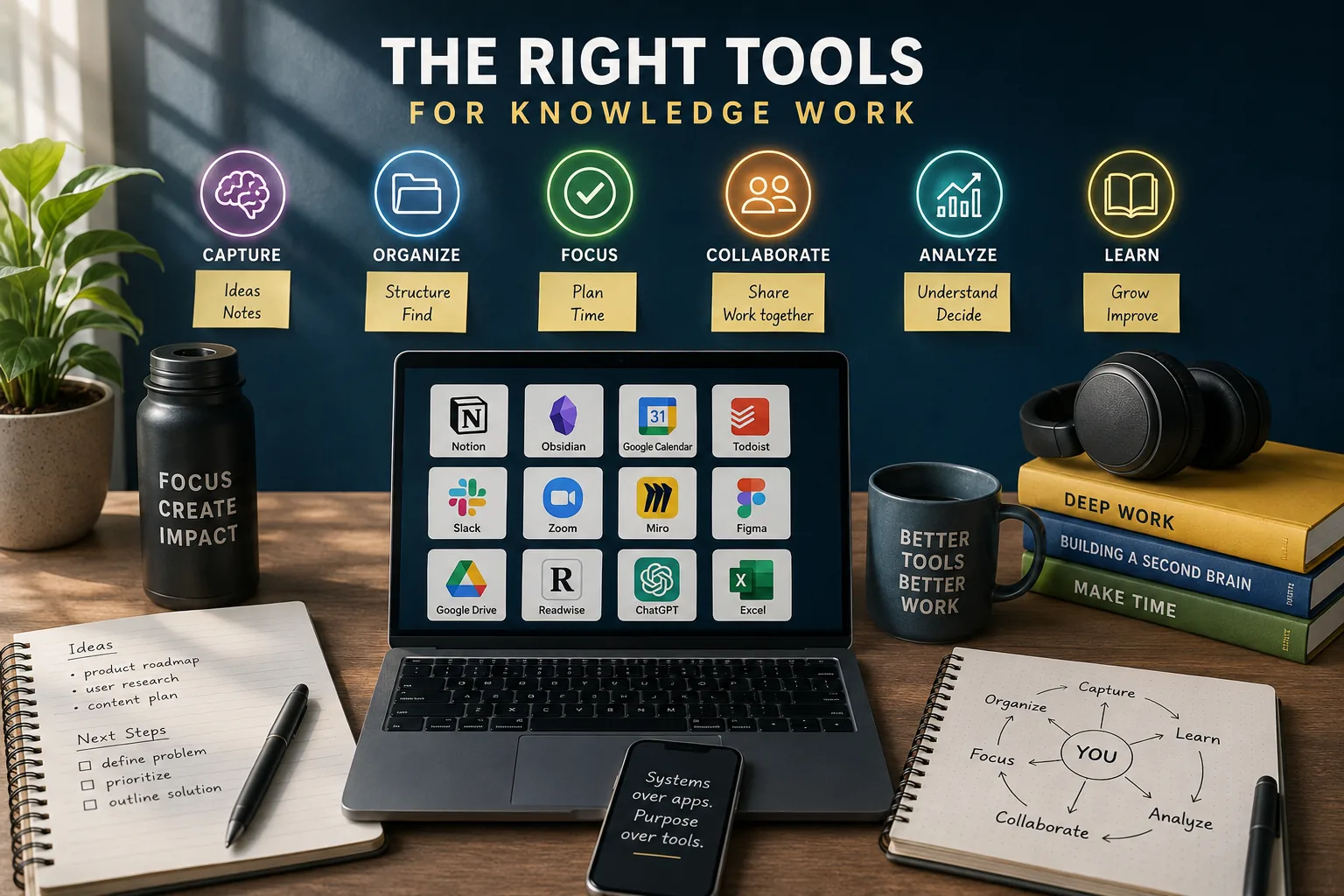
Knowledge workers regularly juggle a large number of different applications over the course of a day, and research by Qatalog and Cornell University's Ellis Idea Lab found that workers spend roughly an hour daily just looking for information scattered across their various tools.[7]
The tools designed to make us productive have, in many cases, become the very thing preventing productivity.
This is not a listicle ranking apps by star ratings. This is a practical examination of what categories of tools knowledge workers genuinely need, how to evaluate them, and how to build a coherent system that serves your work rather than competing for your attention.
"The best tool is the one you will actually use consistently. A mediocre system executed reliably beats a perfect system abandoned after two weeks. The search for the ideal tool is often itself a form of procrastination." - Tiago Forte, Building a Second Brain[5]
The Five Essential Categories of Knowledge Work Tools
| Category | Core Problem Solved | Representative Tools | Key Selection Criterion |
|---|---|---|---|
| Capturing and Organizing Knowledge | Information overload and retrieval | Notion, Obsidian, Roam, Evernote | Matches how you think (structured vs. networked) |
| Tracking Commitments | Cognitive overload from managing tasks mentally | Todoist, Things 3, Asana, Linear | Cross-platform (Todoist) vs. Apple-focused (Things) |
| Communicating and Collaborating | Misalignment and duplicated effort | Slack, Teams, Email, Zoom | Usually organization-mandated; avoid using two |
| Managing Time and Focus | Reactive scheduling consuming all deep work time | Google Calendar, Outlook, Fantastical | Default to organizational tool; add Calendly for external |
| Creating and Refining Output | Unclear thinking and poor communication quality | Google Docs, Word, iA Writer, Grammarly | Collaborative (Docs) vs. formatting-intensive (Word) |
Every knowledge worker, regardless of role or industry, needs tools that address five distinct functions.
The critical word is distinct - each category solves a different problem, and understanding those problems prevents the common mistake of accumulating redundant tools within the same category while leaving other categories unaddressed.
Category 1: Capturing and Organizing Knowledge
The problem this solves: Information overload. You encounter valuable ideas, research, insights, and reference material constantly. Without a system to capture and organize it, you either lose information or spend enormous effort re-finding what you already learned.
What good looks like: A single, trusted place where you can quickly capture thoughts and information, organize them in ways that make retrieval natural, and build connections between ideas over time.[6]
The major options:
Notion - The flexible generalist. Notion combines notes, databases, wikis, and project management in a single tool. Its block-based editor allows mixing text, tables, embedded content, and databases on a single page. Notion excels for teams that want one tool for multiple purposes, and for individuals who think in structured formats.
Example: Figma has used Notion as a company knowledge base, centralizing engineering documentation, product specs, and meeting notes in a single workspace.[8]
Obsidian - The networked thinker's tool. Obsidian stores everything as local Markdown files, creating a knowledge graph through bidirectional links between notes. Obsidian excels for researchers, writers, and anyone building a personal knowledge base over years.
Because files are stored locally in plain text, there is zero vendor lock-in.
Example: Nick Milo, creator of the Linking Your Thinking methodology, built a system of over 10,000 interconnected notes in Obsidian, demonstrating how networked note-taking enables insights that hierarchical filing cannot.
Roam Research - The pioneer of bidirectional linking. Roam introduced the "daily notes" workflow and bidirectional linking to a mainstream audience in 2020. Its outliner-based structure appeals to people who think in bullet points and branching hierarchies.
Roam excels for daily journaling, research synthesis, and stream-of-consciousness capture.
Evernote - The fading veteran. Once the dominant note-taking tool, Evernote's value proposition has eroded through years of stagnant development and multiple ownership changes. Its web clipper remains excellent, and its OCR search of images and documents is still strong.
Evernote excels as a digital filing cabinet for reference material rather than active knowledge work.
How to choose: If you work primarily with teams and want an all-in-one solution, start with Notion. If you are building a long-term personal knowledge base and want data ownership, choose Obsidian. If you think in outlines and value daily capture, consider Roam.
If you primarily need to clip and file web content and documents, Evernote still works.
Category 2: Tracking Commitments and Progress
The problem this solves: Cognitive overload from trying to remember everything you need to do, and lack of clarity about what to work on next.[4]
What good looks like: A system where every commitment is captured, nothing falls through cracks, and you can quickly identify your most important next action at any moment.
The major options:
Todoist - The balanced workhorse. Available on every platform with natural language input ("submit report every Friday at 3pm"), Todoist offers projects, labels, filters, and priorities without overwhelming complexity. Its karma system provides gentle gamification.
Todoist excels for individuals who need cross-platform access and want GTD-compatible organization without steep learning curves.
Things 3 - The Apple purist's choice. Exclusive to Apple devices, Things 3 offers a beautifully designed interface that makes task management feel effortless. Its areas-and-projects structure maps naturally to how people think about their responsibilities.
Things excels for Apple users who value aesthetics and intentional simplicity over feature breadth.
Example: CGP Grey, the popular YouTuber and podcaster, has discussed his use of Things 3 on the Cortex podcast, emphasizing how its deliberate constraints prevent over-engineering a task system.
Asana - The team coordinator. Designed for team project management, Asana provides multiple views (list, board, timeline, calendar), task dependencies, workload management, and extensive integrations. Asana excels when multiple people need visibility into shared work and coordinated delivery.
Linear - The developer's project tool. Linear combines issue tracking with project management in an interface designed for speed. Its keyboard-first design and opinionated workflows appeal to engineering teams. Linear excels for software teams that want modern project tracking without Jira's complexity.
How to choose: For personal task management, choose between Todoist (cross-platform flexibility) and Things 3 (Apple elegance). For team coordination, evaluate Asana (general teams) or Linear (engineering teams).
Do not use a team tool for personal tasks or a personal tool for team coordination - they solve different problems. For more depth, see choosing the right tools.
Category 3: Communicating and Collaborating
The problem this solves: Misalignment, duplicated effort, and isolation. Teams that do not communicate effectively build the wrong things, repeat each other's work, and lose the social connection that sustains motivation.
What good looks like: A communication system with clear channels for different purposes, searchable history, appropriate notification management, and support for both real-time and asynchronous communication.
The major options:
Slack - Still the gold standard for team communication. Superior search, extensive integrations (over 2,400 apps in its marketplace), and polished user experience across platforms. Slack excels for teams that use diverse tool stacks and need a communication hub that connects everything.
Microsoft Teams - The enterprise default. Bundled with Microsoft 365 at no additional cost, Teams provides chat, video calling, and deep integration with Word, Excel, PowerPoint, and SharePoint. Teams excels for organizations already invested in the Microsoft ecosystem, particularly those with compliance requirements.
Email - Still irreplaceable for external communication, formal documentation, and reaching people who are not in your internal tools. Email is the universal protocol of professional communication. Its weakness is everything else - threading, searchability, team coordination, and real-time collaboration.[3]
Zoom / Google Meet - For synchronous face-to-face communication. Video conferencing remains essential for relationship building, complex discussions, and presentations that benefit from visual cues and screen sharing.
How to choose: This is often not your choice. Most organizations mandate a communication platform. If you have a choice, Slack provides the best communication experience while Teams provides the best value for Microsoft-heavy organizations. Do not use both - that fragments conversations and creates the worst possible outcome.
Category 4: Managing Time and Protecting Focus
The problem this solves: Reactive scheduling where meetings consume all available time, leaving no room for the deep work that produces your most valuable output.[10]
What good looks like: A calendar that reflects your priorities, protects time for focused work, and gives you a realistic picture of your commitments across all areas of life.
The major options:
Google Calendar - The dominant personal and small-business calendar. Excellent multi-calendar support, clean interface, and strong integration ecosystem. Free tier is sufficient for most individuals.
Microsoft Outlook Calendar - The enterprise standard. Tightly integrated with Outlook email, Teams, and the Microsoft 365 suite. Its scheduling assistant and room booking features serve large organizations well.
Fantastical - The power user's calendar. Available on Apple platforms, Fantastical provides natural language event creation, beautiful multi-calendar views, and calendar sets for switching between work and personal contexts. Worth the premium for heavy calendar users on Apple devices.
Calendly / Cal.com - Scheduling assistants that eliminate the back-and-forth of finding meeting times. Essential for anyone who schedules meetings with external contacts regularly.
How to choose: Use whatever your organization provides for work calendar. If you have choice, Google Calendar offers the best balance of features and accessibility. Add Calendly or Cal.com if you schedule external meetings frequently.
Category 5: Creating and Refining Output
The problem this solves: Unclear thinking and poor communication quality. Writing is thinking made visible, and the tools you use for writing affect the quality of both.
What good looks like: A writing environment that minimizes friction between thinking and expressing, supports collaboration when needed, and helps you produce clear, polished output.
The major options:
Google Docs - The collaboration standard. Real-time co-editing, commenting, suggestion mode, and version history make Google Docs the default for collaborative writing. Its simplicity is a feature.
Microsoft Word - The formatting powerhouse. For documents requiring complex formatting, templates, or compatibility with traditional business workflows, Word remains essential.
iA Writer / Ulysses - Distraction-free writing tools that strip away formatting options, menus, and visual clutter to focus entirely on text. Exceptional for drafting where getting ideas out matters more than formatting.
Grammarly - An AI writing assistant that catches grammar errors, suggests clearer phrasing, and flags tone issues. Most valuable during editing, not drafting - disable it while writing to maintain flow.
How to choose: Use Google Docs for collaborative writing and Microsoft Word when formatting or compatibility requires it. Use a distraction-free editor for long-form drafting if formatting temptation is a problem. Add Grammarly for editing passes, not as a real-time writing companion.
The All-in-One vs. Best-of-Breed Decision
One of the most consequential choices in building your tool stack is whether to consolidate into an all-in-one platform or use specialized tools for each function.
The Case for All-in-One (Notion, ClickUp, Coda)
Advantages:
- Single tool to learn, reducing cognitive overhead
- All data in one place, enabling connections between notes, tasks, and projects
- Lower total subscription cost
- Simpler team coordination when everyone uses the same tool
Example: Notion has become the default workspace for many startups precisely because it eliminates the complexity of managing multiple tools. Loom, the video messaging company, ran their entire operation in Notion before scaling required more specialized tools.
Disadvantages:
- Each function is adequate but not excellent - the "jack of all trades" problem
- Performance often degrades with large workspaces
- Vendor lock-in: switching means moving everything at once
- Feature development divided across many areas rather than focused on one
The Case for Best-of-Breed (Specialized Tool per Function)
Advantages:
- Superior capabilities in each area
- Faster innovation from focused development teams
- Flexibility to swap one tool without affecting others
- No single point of failure
Disadvantages:
- Cognitive overhead of learning and maintaining multiple tools
- Data scattered across systems
- Integration complexity
- Higher total cost
The Pragmatic Middle Path
Most knowledge workers do best with a hybrid approach:
- Use an all-in-one tool (Notion, Coda) for personal workspace - notes, planning, knowledge management
- Use specialized tools for critical team functions - dedicated project management for complex coordination, dedicated communication platform for team interaction
- Integrate where the friction is highest - automate the handoffs that you perform most frequently
How Many Tools Is Too Many?
Most knowledge workers function well with 5-8 core tools. Beyond that, the management overhead begins to exceed the benefit.
The minimum viable stack for most individual contributors:
- Email and calendar (Google Workspace or Microsoft 365)
- Communication platform (Slack or Teams - usually organization-mandated)
- Task management (any system you will actually use)
- Note-taking / knowledge management (one tool, used consistently)
- Document creation (usually included with email suite)
Add specialized tools only when you hit clear limitations:
- Add dedicated project management when simple task lists cannot handle team coordination
- Add a CRM when you manage significant external relationships
- Add design tools, development tools, or analytics platforms as your specific role requires
The quarterly tool audit: Every three months, list every tool you have an account for. For each one, ask: "Have I used this in the past month? Does it solve a problem no other tool solves?" If the answer to both is no, delete the account.
The Decision Framework for Choosing Any Tool
When evaluating a new tool, run it through these filters in order:
Filter 1: Does it solve a specific current problem? Not a hypothetical future problem. Not an impressive capability you might use someday. A problem you are experiencing now that is costing you time or quality.
Filter 2: Does it fit your working style? Visual thinkers need boards and canvases. Linear thinkers need lists and outlines. If the tool's paradigm conflicts with how your mind works, you will abandon it regardless of its features.
Filter 3: Does it integrate with your existing tools? A standalone tool that does not connect to anything creates data silos and context-switching overhead. Check for native integrations, Zapier/Make support, or API access.
Filter 4: Is it simple enough to use immediately? Tools requiring days of setup before providing value have high abandonment rates. The best tools are useful within minutes and become more powerful as you learn them.
Filter 5: Can you get your data out? Before committing to any tool, verify that you can export your data in a standard format. Proprietary formats that trap your information create dangerous vendor dependence.
Example: Obsidian passes filter 5 perfectly - every note is a plain Markdown file on your local filesystem. Notion is adequate - it offers export but the database structures do not translate cleanly. Some tools fail this filter entirely - if you cannot export, do not commit your important work to them.
Consumer Tools vs. Enterprise Tools: When the Tier Matters
Consumer Tools (Free or Low Cost)
Examples: Todoist free tier, Notion personal, Evernote free, Trello free, Google Docs
Characteristics:
- Quick setup without IT department involvement
- Designed for individuals or very small teams
- Consumer-friendly pricing (free tier plus affordable personal upgrades)
- Minimal learning curve
- Flexibility to organize however you prefer
- Limited admin controls or organizational governance
When they are sufficient: Individual productivity, teams under 10 people, non-sensitive data, informal coordination where everyone picks their own tools.
Enterprise Tools (Per-Seat, Organizational)
Examples: Asana Business, Microsoft 365 E5, Salesforce, Enterprise Slack, Jira
Characteristics:
- Complex setup often requiring IT involvement
- Designed for organizations with departments and hierarchies
- Enterprise pricing (per-seat with annual contracts)
- Steeper learning curve but more powerful capabilities
- Standardized workflows and governance
- Admin controls for permissions, access, and compliance
- Security certifications (SOC 2, HIPAA, GDPR)
When they become necessary: Teams over 50 people, regulated industries, sensitive data, organizations needing centralized management and compliance.
Example: Canva grew from using consumer-grade tools when they were a small startup in Sydney to requiring enterprise-grade infrastructure as they scaled to over 3,000 employees.
Their migration from simple tools to enterprise platforms happened gradually - each tool switch triggered by a specific limitation: needing SSO when they hit 200 employees, needing compliance features when they entered the healthcare market, needing advanced admin controls when managing teams across 10 offices.
The Prosumer Middle Ground
For companies in the 10-200 person range, prosumer tiers (Notion Team, Slack Pro, Asana Premium) offer a practical middle ground: consumer-level usability with essential team features like basic SSO, admin controls, and better support.
Common mistakes at each tier:
- Individuals using enterprise tools: Over-engineering personal productivity. You do not need Jira for personal to-dos.
- Small companies staying on consumer tools too long: Eventually hitting security, compliance, or management walls that require painful emergency migration.
- Enterprises banning consumer tools entirely: Driving useful personal productivity underground, creating "shadow IT" that is harder to manage than tolerating approved consumer tools for non-sensitive personal work.
The Real-World Tool Evaluation Process
The academic comparison of tools is useful but insufficient. Here is how to actually evaluate tools in practice:
Step 1: Identify the Specific Pain Point (1 Day)
Write down the specific problem in one sentence: "I lose track of client commitments because they are scattered across email, Slack, and my notebook." If you cannot articulate the specific problem, you do not need a new tool.
Step 2: Research Candidates (2-3 Days Maximum)
Identify 2-3 tools that address your specific problem. Do not evaluate more than three - the marginal information from the fourth, fifth, and sixth tools does not justify the time invested.
Sources for candidates:
- Ask colleagues with similar workflows what they use
- Check comparison articles for your specific use case (not "best productivity tools 2026" but "best tools for managing client relationships as a freelancer")
- Look at what your existing tools integrate with natively
Step 3: Trial with Real Work (2 Weeks)
Do not test with hypothetical scenarios. Use the tool for your actual daily work for at least two weeks. Toy examples do not reveal the friction that emerges only with real data and real workflows.
Example: Matt Mullenweg, co-founder of WordPress and CEO of Automattic (the company behind WordPress.com), has discussed how Automattic evaluates tools by deploying them to a small team for real work before company-wide adoption. A tool that works in a demo can fail completely under the patterns of actual use.
Step 4: Commit or Remove (Decision Day)
After two weeks, make a binary decision: commit for at least 90 days, or remove entirely. Do not leave trials lingering - they become zombie tools that consume account space and mental overhead.
Step 5: Periodic Re-Evaluation (Quarterly)
Every three months, ask: "Is this tool still solving the problem I adopted it for? Has a clearly better option emerged? Am I actually using this?" If the answer to the first two is no and the third is "barely," remove it.
Research on Tool Proliferation and Cognitive Overhead
The hidden costs of expanding knowledge worker tool stacks have drawn real research attention across multiple disciplines, even where popular coverage sometimes overstates the precision of the findings.
Gloria Mark (Professor of Informatics at the University of California, Irvine) has spent over two decades studying the cognitive effects of digital interruptions and tool switching.[2] Her 2023 book Attention Span synthesizes decades of her research on attention in workplace settings.
Her best-known finding is that it takes people an average of about 23 minutes to fully return to a task after being interrupted or switching away from it - not from distraction alone, but from the cognitive residue of an incomplete task that persists in working memory. This does not mean every switch costs a clean 23 minutes of lost productivity in an additive sense; interruption costs overlap and compound in complex ways that a simple multiplication does not capture.
Qatalog, in partnership with Cornell University's Ellis Idea Lab, published the "Workgeist Report" documenting how workers experience tool fragmentation.[1] The report found that workers spend a substantial share of their day - roughly an hour - searching for information scattered across different tools, and that switching between tools carries a real recovery cost before workers regain their prior train of thought.[9]
Linda Stone (former Apple and Microsoft executive, now a writer and speaker focused on human attention) coined the term "continuous partial attention" in the late 1990s to describe the cognitive mode produced by constantly monitoring multiple inputs at once - a state distinct from simple multitasking, in which attention is perpetually divided across many potential demands rather than focused on any one task.
Practical Principles for Tool Selection
Beyond formal academic research, a consistent set of practical principles has emerged from how real organizations approach tool selection and consolidation.
Shopify's 2023 decision to cancel recurring meetings with more than a small number of attendees is a well-documented real example of a company treating its own internal processes as something to be audited and redesigned, not simply accepted as fixed overhead - the company reported that its workforce had accumulated tens of thousands of hours of recurring meetings per week before the change.
Basecamp (formerly 37signals), whose founders Jason Fried and David Heinemeier Hansson wrote about the company's approach to internal tooling in It Doesn't Have to Be Crazy at Work, has long argued for radically consolidating internal tools into as few systems as possible, on the theory that every additional tool is a place where information can get lost and a task can get forgotten.
The consistent theme across these examples is not a single universal statistic but a repeatable pattern: organizations that treat tool sprawl as a cost worth actively measuring and reducing - rather than an unavoidable side effect of growth - tend to report meaningful improvements in focus and coordination, even though the exact magnitude of those improvements varies by organization and is rarely reducible to a single clean percentage.
What Matters More Than the Tool Itself
After years of observing productivity communities, one pattern is clear: the tool matters far less than the consistency of use. A mediocre tool used daily outperforms a perfect tool used sporadically.
The habits that matter more than tool choice:
- Capture everything in one trusted place. The tool does not matter; the habit does.
- Review regularly. Weekly reviews of tasks, notes, and commitments keep any system functional.
- Process, do not just collect. Information captured but never processed is just organized hoarding.
- Start simple. Use 20% of a tool's features before exploring the rest. Master the basics before adding complexity.
- Commit for at least 90 days. Tool-hopping prevents building the muscle memory that makes any tool efficient.
The search for the perfect tool is itself a form of procrastination. Choose good-enough tools, use them consistently, and redirect the energy you would spend optimizing tools toward doing your actual work.
Sources & Further Reading
Qatalog & Cornell University. "Workgeist Report 2022: The Hidden Costs of Workplace Chaos." Qatalog, 2022. View source
Mark, G., Gudith, D., & Klocke, U. "The Cost of Interrupted Work: More Speed and Stress." Proceedings of the SIGCHI Conference on Human Factors in Computing Systems, 2008. View source
Newport, C. "A World Without Email: Reimagining Work in an Age of Communication Overload." Portfolio, 2021.
Allen, D. "Getting Things Done: The Art of Stress-Free Productivity." Penguin Books, 2015.
Forte, T. "Building a Second Brain: A Proven Method to Organize Your Digital Life and Unlock Your Creative Potential." Atria Books, 2022.
Ahrens, S. "How to Take Smart Notes: One Simple Technique to Boost Writing, Learning and Thinking." Soenke Ahrens, 2017.
Qatalog & Cornell University Ellis Idea Lab. "Workgeist Report 2021: The Cost of Context Switching." Qatalog, 2021.
Notion Labs. "How Teams Use Notion." Notion Blog, 2023.
Gonzalez, V. M. & Mark, G. "'Constant, Constant, Multi-tasking Craziness': Managing Multiple Working Spheres." Proceedings of the SIGCHI Conference on Human Factors in Computing Systems, 2004.
Drucker, P. F. "The Effective Executive." Harper & Row, 1967.