
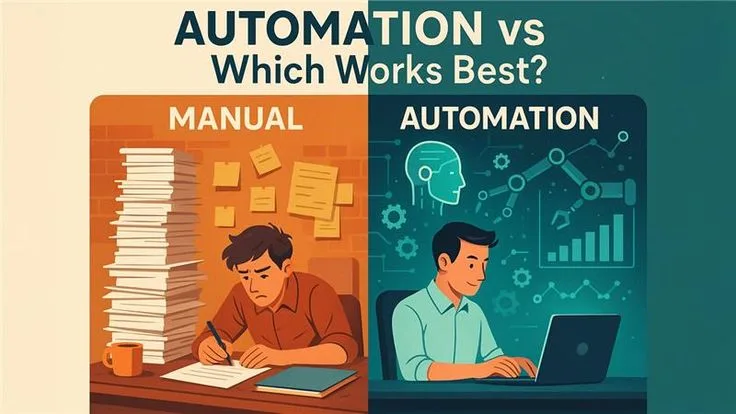
Introduction: The Hidden Tax of Manual Work
Workflow: There is a particular kind of exhaustion that comes not from difficult work, but from repetitive work.
It is the fatigue of copying data from one spreadsheet to another, of formatting the same weekly report for the fourteenth consecutive Friday, of sorting through an inbox that seems designed to consume hours rather than convey information.
This is busywork - and for most knowledge workers, it represents a staggering portion of their professional lives.
Research from the McKinsey Global Institute suggests that roughly 60 percent of all occupations have at least 30 percent of activities that could be automated with currently available technology.
A 2023 study by Asana found that workers spend 58 percent of their time on "work about work" - status updates, searching for information, switching between applications, managing shifting priorities - rather than the skilled, strategic tasks they were hired to perform.
The arithmetic is sobering. If you work a standard 40-hour week and spend even 25 percent of that time on tasks that could be automated, you are losing 10 hours per week, 520 hours per year, to work a machine could do faster and more reliably.
Over a decade, that is more than 5,000 hours - roughly two and a half years of full-time work - consumed by tasks that added no unique human value.
Workflow automation is the practice of identifying these repetitive, rule-based tasks and delegating them to software systems that execute them consistently, without supervision, and at speeds no human can match. But the concept is simpler than it sounds.
At its core, automation answers one question: "Is there a predictable pattern here that I can codify into rules?"
This article is not a surface-level list of tools. It is a deep, practical guide to identifying, designing, implementing, and maintaining automated workflows across the most common areas of knowledge work.
We will cover email triage, data synchronization, meeting preparation, status reporting, and more - with concrete examples, ROI calculations, and the honest caveats that most automation guides leave out.
The goal is not to automate everything. It is to automate the right things, in the right way, so that your time and attention are freed for work that actually requires a human mind - work that demands deep focus and genuine judgment.[10]
Part 1: The Automation Audit - Identifying What to Automate
"Productivity is never an accident. It is always the result of a commitment to excellence, intelligent planning, and focused effort." - Paul J. Meyer
Before you automate anything, you need to know what you are automating and why. The most common mistake in workflow automation is not choosing the wrong tool - it is choosing the wrong task.[20] People tend to automate whatever annoys them most at the moment, rather than what would yield the greatest return over time.
The Task Inventory Method
The first step is a structured audit of how you actually spend your time. For one full work week, track every task you perform, noting four attributes for each:[14]
| Attribute | Question | Scale |
|---|---|---|
| Frequency | How often does this task occur? | Daily / Weekly / Monthly / Ad hoc |
| Duration | How long does it take each time? | Minutes per occurrence |
| Variability | How much does the task change each time? | Low / Medium / High |
| Error sensitivity | What happens if this task is done incorrectly? | Low / Medium / High impact |
Tasks that score high on frequency, moderate on duration, low on variability, and low-to-medium on error sensitivity are your prime automation candidates.
A task you do daily that takes 15 minutes, follows the same steps every time, and has limited consequences if done imperfectly is a better candidate than a monthly task that takes two hours but requires significant judgment.
The Automation Suitability Matrix
Once you have your task inventory, plot each task against two dimensions: automation feasibility (how easy it is to automate) and automation value (how much time or quality improvement the automation would deliver).
High Value, Low Feasibility    |    High Value, High Feasibility
(Invest & plan)                |    (Automate immediately)
                               |
-------------------------------+-------------------------------
                               |
Low Value, Low Feasibility     |    Low Value, High Feasibility
(Ignore)                       |    (Quick wins if trivial)
The upper-right quadrant - high value, high feasibility - is where you start.
These are the tasks that are both easy to automate and worth automating. Common examples include:
- Forwarding certain types of emails to specific folders or team members
- Updating a shared spreadsheet when a form is submitted
- Sending a Slack notification when a deal closes in your CRM
- Generating a weekly summary of key metrics from a dashboard
The upper-left quadrant - high value, low feasibility - is where you invest time in planning. These are automations that would save significant time but require more sophisticated tooling, custom integrations, or conditional logic.
Examples include multi-step approval workflows, automated document generation from templates with dynamic content, and cross-platform data reconciliation.
Three Questions Before You Automate
Before committing to any automation, ask three questions:
First: Is this task stable? If the underlying process changes frequently - new fields are added to forms, the approval chain shifts every quarter, the data source is unreliable - automation may create more maintenance burden than it saves. Automate stable processes first.
Second: What is the failure mode? Every automation will eventually fail. An API changes, a field is renamed, a service goes down. Before you automate, think about what happens when the automation breaks.
If a broken automation means a client receives a garbled email or financial data is corrupted, you need robust error handling and monitoring. If a broken automation means a Slack message is not sent, the stakes are lower.
Third: Am I automating a bad process? Automating an inefficient process does not make it efficient - it makes it consistently inefficient at scale. Before you automate, ask whether the process itself should be redesigned. Sometimes the best automation is eliminating the task entirely rather than making a machine do it faster.[19]
"There is nothing so useless as doing efficiently that which should not be done at all." - Peter Drucker[15]
Part 2: Email Triage and Auto-Filtering Workflows
"Email is a wonderful thing for people whose role in life is to be on top of things. But not for me; my role is to be on the bottom of things." - Donald Knuth
Email remains the dominant communication channel for professional work, and it remains one of the largest time sinks. A 2019 study by the Radicati Group estimated that the average business professional sends and receives 126 emails per day.[3]
Even if you spend just 30 seconds reading and sorting each one, that is over an hour per day spent on email triage alone.
Building a Multi-Layer Email Filtering System
Effective email automation is not about a single rule - it is about a layered system where each layer catches specific types of messages and routes them appropriately.
Layer 1: Sender-Based Rules
The simplest and most reliable automation. Most email clients (Gmail, Outlook, Apple Mail) support rules based on the sender's address or domain.
Example rule structure for Gmail filters:
Rule: Automated System Notifications
  Condition: From contains "noreply@" OR "notifications@" OR "alerts@"
  Action: Skip inbox, Apply label "Automated/Notifications", Mark as read

Rule: Internal Team Updates
  Condition: From contains "@yourcompany.com" AND Subject contains "update" OR "standup" OR "weekly"
  Action: Apply label "Team/Updates"

Rule: Client Communications
  Condition: From contains "@clientdomain.com"
  Action: Apply label "Clients/ActiveProject", Star message
Layer 2: Content-Based Rules
More sophisticated rules that examine the subject line or body content.
Rule: Invoice Processing
  Condition: Subject contains "invoice" OR attachment name contains ".pdf"
    AND From is in "Vendors" contact group
  Action: Apply label "Finance/Invoices", Forward to accounting@yourcompany.com

Rule: Calendar Conflicts
  Condition: Subject contains "declined" OR "conflict" OR "reschedule"
    AND From contains "calendar-notification"
  Action: Apply label "Calendar/NeedsAttention", Keep in inbox
Layer 3: Integration-Based Automation
This is where email triage connects to your broader workflow. Using integration platforms like Zapier or Make (formerly Integromat), you can create automations that go beyond simple filtering.
Example Zapier workflow for email-to-task conversion:
Trigger: New email in Gmail matching search "label:Clients/ActiveProject"
Filter: Email body contains "action needed" OR "please review" OR "deadline"
Action 1: Create task in Todoist/Asana with:
  - Title: [Sender Name] - [Email Subject]
  - Description: [First 500 characters of email body]
  - Due date: 2 business days from now
  - Priority: High
Action 2: Reply to email with template:
  "Thanks for your message.
I have logged this and will follow up within 2 business days."
Action 3: Move email to "Clients/ActionRequired" label
The Email Triage Decision Tree
For organizations with high email volume, a decision tree approach ensures consistent handling:
Incoming Email
  |
  +-- Is it automated/system-generated?
  |     Yes --> Label and archive (never hits inbox)
  |     No  --> Continue
  |
  +-- Is it from a known sender?
  |     Yes --> Route to appropriate label
  |     No  --> Continue
  |
  +-- Does it require action from me specifically?
  |     Yes --> Keep in inbox, create task
  |     No  --> Continue
  |
  +-- Is it informational (FYI, CC)?
  |     Yes --> Label "Reference", archive
  |     No  --> Keep in inbox for manual review
Realistic Time Savings
A well-implemented email filtering system typically saves 30 to 45 minutes per day for someone receiving 100 or more emails daily.
The savings come not just from the filtering itself, but from the reduced cognitive load of not having to make sorting decisions for each message. Over a year, 30 minutes per day translates to roughly 130 working hours - more than three full work weeks recovered.
Part 3: Data Synchronization Between CRM, Spreadsheets, and Databases
Data synchronization is one of the most valuable and most dangerous areas for automation. Valuable because manual data entry between systems is slow, error-prone, and deeply tedious. Dangerous because automated data sync, done poorly, can propagate errors at machine speed and corrupt data across multiple systems simultaneously.
Common Synchronization Patterns
Effective data-driven workflows require clean, synchronized data moving across systems without manual intervention.
Pattern 1: One-Way Push (Source to Destination)
The simplest pattern. Data enters one system and is automatically pushed to another. No data flows back.
Example: CRM to Spreadsheet
  Trigger: New deal closed in HubSpot
  Action: Add row to Google Sheet "Monthly Revenue Tracker"
    Column A: Close date
    Column B: Deal name
    Column C: Deal value
    Column D: Sales rep
    Column E: Deal source
This pattern works well when the spreadsheet is used for reporting and is never manually edited.
The CRM remains the single source of truth.
Pattern 2: Two-Way Sync (Bidirectional)
More complex. Changes in either system are reflected in the other. This requires conflict resolution rules.
Example: CRM and Project Management Tool
  Rule 1: When deal status changes to "Won" in CRM
    --> Create project in Asana with deal details
  Rule 2: When project status changes to "Complete" in Asana
    --> Update CRM deal record: "Delivery Status" = "Complete"
  Conflict Resolution: CRM wins for financial data, Asana wins for project status
Pattern 3: Hub-and-Spoke (Central Database)
A central database serves as the single source of truth, with multiple systems reading from and writing to it.
Central Database (PostgreSQL / Airtable / Notion)
    |
    +-- CRM reads customer data, writes deal updates
    +-- Invoicing system reads deal data, writes payment status
    +-- Reporting dashboard reads all data, writes nothing
    +-- Email marketing reads customer segments, writes engagement metrics
Building a CRM-to-Spreadsheet Sync with Make (Integromat)
Here is a practical example of a data sync workflow using Make:
Scenario: Sync HubSpot Contacts to Google Sheets

Module 1: HubSpot - Watch Contacts
  Trigger: Contact property "lifecycle_stage" changes to "customer"
  Polling interval: Every 15 minutes

Module 2: Google Sheets - Search Rows
  Search: Column A (Email) matches HubSpot contact email
  Purpose: Check if contact already exists in sheet

Module 3: Router
  Route A: Contact exists --> Update existing row
  Route B: Contact does not exist --> Add new row

Module 4A: Google Sheets - Update Row
  Update matching row with latest HubSpot data

Module 4B: Google Sheets - Add Row
  Add new row with all contact fields

Module 5: Slack - Send Message
  Channel: #sales-updates
  Message: "New customer synced: [Name] ([Company]) - $[Deal Value]"
Data Validation and Error Handling
The most critical aspect of data sync automation is not the sync itself - it is what happens when data is malformed, missing, or conflicting.
Essential validation rules to implement:
| Validation | Purpose | Implementation |
|---|---|---|
| Required field check | Prevent incomplete records | If [field] is empty, skip record and log error |
| Data type validation | Prevent type mismatches | If [revenue] is not a number, skip and alert |
| Duplicate detection | Prevent duplicate records | Match on email address or unique ID before creating |
| Range checking | Prevent unreasonable values | If [deal_value] greater than 1,000,000, flag for review |
| Timestamp validation | Prevent stale data overwriting fresh | Compare last_modified timestamps before updating |
A robust sync automation should include an error logging mechanism - a dedicated spreadsheet, database table, or monitoring channel where failed syncs are recorded with enough detail to diagnose the problem.
Error Log Entry Example:
  Timestamp: 2026-03-08T14:23:00Z
  Source: HubSpot Contact Sync
  Record: john.smith@example.com
  Error: Required field "company_name" is empty
  Action Taken: Record skipped, notification sent to #data-ops
  Resolution: Manual entry required
Realistic Time Savings
Manual data entry between systems typically takes 5 to 15 minutes per record, depending on complexity. For a sales team closing 50 deals per month, automated CRM-to-spreadsheet sync saves roughly 4 to 12 hours monthly.
The greater value, however, is in error reduction. Manual data entry has a typical error rate of 1 to 4 percent. Automated sync, once properly configured, has an error rate approaching zero for structured data.
Part 4: Meeting Preparation and Follow-Up Automation
Meetings are a perennial target for productivity complaints, but the problem is often not the meeting itself - it is the preparation and follow-up.
Gathering relevant documents, reviewing previous notes, drafting agendas, distributing minutes, and tracking action items are all tasks that follow predictable patterns and can be substantially automated.
"The meeting of two personalities is like the contact of two chemical substances: if there is any reaction, both are transformed." - Carl Jung
Pre-Meeting Automation
Automated Agenda Generation
For recurring meetings (weekly standups, monthly reviews, quarterly planning), the agenda often follows a consistent template. Automation can populate this template with current data before each meeting.
Example workflow for a weekly sales review:
Trigger: Every Monday at 7:00 AM

Step 1: Pull data from CRM
  - New deals opened this week
  - Deals closed this week (won and lost)
  - Pipeline value by stage
  - Deals with no activity in 7+ days

Step 2: Pull data from support system
  - Open support tickets from key accounts
  - Customer satisfaction scores from past week

Step 3: Compile agenda document
  Template:
    Weekly Sales Review - [Date]
    ================================
    1.
Pipeline Overview
       - Total pipeline: $[calculated_value]
       - New this week: [count] deals worth $[value]
       - Closed won: [count] deals worth $[value]
       - Closed lost: [count] deals worth $[value]

    2.
Stalled Deals (No activity 7+ days)
       [List of deals with owner, value, last activity date]

    3.
Key Account Alerts
       [Support tickets from accounts with ARR > $50K]

    4.
Discussion Items
       [Blank section for manual additions]

Step 4: Share document
  - Create/update Google Doc with compiled data
  - Share link in #sales-team Slack channel
  - Send calendar update with agenda link

Step 5: Reminder
  - Send Slack DM to each sales rep 30 minutes before meeting:
    "Sales review in 30 minutes.
Your stalled deals: [list]"
Automated Participant Briefing
For meetings with external participants (client calls, vendor meetings, partnership discussions), automation can compile a briefing document.
Trigger: Calendar event with label "External Meeting" starts in 2 hours

Step 1: Extract participant email domains from calendar event
Step 2: Search CRM for matching contacts and companies
Step 3: Pull recent interaction history
  - Last 5 emails exchanged
  - Last meeting notes
  - Open deals or projects
  - Outstanding invoices or support tickets
Step 4: Compile one-page briefing
Step 5: Send briefing to internal attendees via email or Slack
Post-Meeting Automation
Action Item Extraction and Tracking
After meetings, action items often live in meeting notes that no one revisits. Automation can extract structured action items and feed them into task management systems.
Using a structured format in meeting notes enables reliable extraction:
Meeting notes convention:
  ACTION: [Person] will [task description] by [date]

Example notes:
  ACTION: Sarah will send revised proposal to Acme Corp by March 15
  ACTION: Dev team will deploy staging environment by end of sprint
  ACTION: Marketing will prepare case study draft by March 22

Automation:
  Trigger: Meeting notes document is updated
  Step 1: Parse document for lines starting with "ACTION:"
  Step 2: Extract assignee, task, and deadline
  Step 3: Create task in project management tool (Asana, Linear, Jira)
  Step 4: Assign to appropriate person
  Step 5: Set due date
  Step 6: Send notification to assignee with link to original meeting notes
Automated Follow-Up Emails
For client-facing meetings, a follow-up email summarizing key points and next steps is professional and expected - but writing it manually is tedious.
Trigger: Calendar event with label "Client Meeting" ends
Delay: 1 hour after meeting end

Step 1: Pull meeting notes from shared document
Step 2: Apply follow-up email template:

  Subject: Follow-Up: [Meeting Title] - [Date]

  Hi [Client First Name],

  Thank you for taking the time to meet today.
Here is a summary
  of what we discussed and the agreed next steps:

  Key Discussion Points:
  [Extracted from notes]

  Next Steps:
  [Extracted action items]

  Please let me know if I have missed anything or if you have
  questions.

  Best regards,
  [Your name]

Step 3: Create draft in email client (do NOT auto-send)
Step 4: Notify user: "Follow-up draft ready for [Client Name] meeting"
Note the critical design choice: the automation creates a draft, not a sent email.
This maintains human oversight for client communications while eliminating the effort of composing the email from scratch.
Realistic Time Savings
Meeting preparation typically takes 10 to 30 minutes for internal meetings and 20 to 60 minutes for external meetings when done manually. Post-meeting follow-up adds another 15 to 30 minutes. For someone with 10 meetings per week, automating preparation and follow-up can save 3 to 8 hours weekly.
For managers with 15 to 20 meetings per week, the savings can exceed 10 hours.
Part 5: Status Reporting and Dashboard Automation
Status reports are among the most universally disliked tasks in knowledge work. They consume time, they interrupt flow, and they often go unread by the people who requested them.[16] Yet they serve a real purpose: keeping stakeholders informed, surfacing problems early, and maintaining accountability.
The solution is not to eliminate status reporting but to automate the data collection and formatting so that reports generate themselves.
Building an Automated Weekly Status Report
Here is a complete architecture for an automated weekly status report that pulls data from multiple sources:
Data Sources:
  1. Project management tool (Asana/Jira/Linear)
     - Tasks completed this week
     - Tasks in progress
     - Overdue tasks
     - Blockers flagged

  2. Version control (GitHub/GitLab)
     - Pull requests merged
     - Issues opened and closed
     - Deployment count

  3.
Customer support (Zendesk/Intercom)
     - Tickets opened and resolved
     - Average response time
     - Customer satisfaction score

  4.
Revenue data (CRM/Stripe)
     - New MRR added
     - Churn
     - Pipeline changes

Compilation Schedule:
  Friday 4:00 PM: Pull data from all sources
  Friday 4:05 PM: Apply formatting template
  Friday 4:10 PM: Generate charts/visualizations
  Friday 4:15 PM: Distribute via email and Slack
Implementation with n8n (Self-Hosted Automation)
For teams that want full control over their automation infrastructure, n8n provides a self-hosted, open-source alternative to cloud-based platforms.[8] Here is a practical workflow definition:
{
  "name": "Weekly Status Report",
  "nodes": [
    {
      "type": "Schedule Trigger",
      "parameters": {
        "rule": "0 16 * * 5"
      }
    },
    {
      "type": "HTTP Request",
      "name": "Fetch Jira Data",
      "parameters": {
        "url": "https://your-domain.atlassian.net/rest/api/3/search",
        "method": "GET",
        "queryParameters": {
          "jql": "resolved >= -7d AND project = PROJ"
        }
      }
    },
    {
      "type": "HTTP Request",
      "name": "Fetch GitHub Data",
      "parameters": {
        "url": "https://api.github.com/repos/org/repo/pulls",
        "method": "GET",
        "queryParameters": {
          "state": "closed",
          "sort": "updated",
          "direction": "desc"
        }
      }
    },
    {
      "type": "Function",
      "name": "Compile Report",
      "parameters": {
        "functionCode": "// Merge data from all sources into report template"
      }
    },
    {
      "type": "Email Send",
      "name": "Distribute Report",
      "parameters": {
        "to": "team@company.com",
        "subject": "Weekly Status Report - {{$now.format('YYYY-MM-DD')}}"
      }
    }
  ]
}
Dashboard Automation with Google Sheets and Data Studio
For teams without dedicated BI tools, Google Sheets combined with automated data imports can serve as a lightweight but effective dashboard.
Architecture:
  Automated Data Feeds (via Zapier/Make/Apps Script)
      |
      v
  Google Sheets (Data Layer)
      |
      +-- Sheet 1: "Raw_Sales_Data" (auto-populated from CRM)
      +-- Sheet 2: "Raw_Support_Data" (auto-populated from Zendesk)
      +-- Sheet 3: "Raw_Engineering_Data" (auto-populated from GitHub)
      +-- Sheet 4: "Calculations" (formulas referencing raw sheets)
      +-- Sheet 5: "Dashboard" (charts and summary tables)
      |
      v
  Google Data Studio / Looker Studio (Visualization Layer)
      - Connected to Google Sheets
      - Auto-refreshes on schedule
      - Shareable link for stakeholders
A Google Apps Script can automate the data refresh and distribution:
function weeklyReportTrigger() {
  // Refresh all data connections
  var spreadsheet = SpreadsheetApp.openById('SPREADSHEET_ID');

  // Pull CRM data
  var crmData = fetchCRMData();
  updateSheet(spreadsheet, 'Raw_Sales_Data', crmData);

  // Pull support data
  var supportData = fetchSupportData();
  updateSheet(spreadsheet, 'Raw_Support_Data', supportData);

  // Generate PDF of dashboard sheet
  var dashboardSheet = spreadsheet.getSheetByName('Dashboard');
  var pdf = generatePDF(spreadsheet, dashboardSheet);

  // Email the report
  MailApp.sendEmail({
    to: 'stakeholders@company.com',
    subject: 'Weekly Dashboard - ' + Utilities.formatDate(new Date(), 'UTC', 'yyyy-MM-dd'),
    body: 'Please find this week\'s dashboard attached.',
    attachments: [pdf]
  });
}

function fetchCRMData() {
  var options = {
    'method': 'get',
    'headers': {
      'Authorization': 'Bearer ' + PropertiesService.getScriptProperties().getProperty('CRM_API_KEY')
    }
  };
  var response = UrlFetchApp.fetch('https://api.hubspot.com/crm/v3/objects/deals', options);
  return JSON.parse(response.getContentText());
}
KPI Alerting
Beyond scheduled reports, automated threshold alerts ensure that problems surface immediately rather than waiting for the next reporting cycle.
Alert Configuration Examples:

Alert: Revenue Drop
  Metric: Daily new MRR
  Threshold: Below 7-day rolling average by more than 30%
  Action: Send Slack alert to #revenue channel and email CFO

Alert: Support Overload
  Metric: Unresolved support tickets
  Threshold: More than 50 open tickets OR average response time > 4 hours
  Action: Send Slack alert to #support-escalation, page on-call manager

Alert: Deployment Failure
  Metric: CI/CD pipeline status
  Threshold: Any failure on main branch
  Action: Send Slack alert to #engineering, create incident ticket

Alert: Churn Risk
  Metric: Customer health score
  Threshold: Score drops below 40 for any account with ARR > $10K
  Action: Create task for account manager, send briefing with usage data
Realistic Time Savings
Manual status report compilation typically takes 1 to 3 hours per report, depending on the number of data sources and the level of formatting required.
For a manager producing one weekly report and one monthly executive summary, automation saves 6 to 15 hours per month.
The indirect savings are even greater: stakeholders receive more timely and accurate data, problems are surfaced faster, and report creators are freed to spend that time on analysis and decision-making rather than data gathering.
Part 6: Integration Platforms, Workflow Chaining, and Maintenance
Choosing an Integration Platform
The integration platform market has matured significantly, and the right choice depends on your technical capacity, budget, and specific needs.[12]
| Platform | Best For | Pricing Model | Technical Skill Required | Self-Hosted Option |
|---|---|---|---|---|
| Zapier | Non-technical users, simple workflows | Per-task pricing, starts free | Low | No |
| Make (Integromat) | Visual workflow builders, moderate complexity | Per-operation, starts free | Low-Medium | No |
| n8n | Technical teams wanting full control | Free (self-hosted), paid cloud | Medium-High | Yes |
| Power Automate | Microsoft ecosystem shops | Per-user/per-flow, included in some M365 plans | Low-Medium | No (on-premises available) |
| Tray.io | Enterprise, complex integrations | Custom pricing | Medium-High | No |
| Workato | Enterprise, IT-governed automation | Custom pricing | Medium | No |
Zapier excels at simple, linear workflows. Its interface is intuitive, its app library is vast (over 6,000 integrations), and it requires no coding. Its weakness is cost at scale - pricing is based on the number of tasks (individual actions), and high-volume workflows can become expensive quickly.
It also has limited support for complex branching logic.
Make offers a visual canvas for building workflows and handles branching, loops, and error handling more naturally than Zapier. Its per-operation pricing tends to be more economical at high volumes. The learning curve is steeper, but the capability ceiling is higher.
n8n is the choice for teams with technical resources who want to avoid per-operation costs and maintain full control over their data. Self-hosting eliminates recurring platform fees (beyond infrastructure costs) and keeps all data within your own environment. The trade-off is that you are responsible for maintenance, updates, and uptime.
Power Automate is the natural choice for organizations already embedded in the Microsoft ecosystem (Office 365, SharePoint, Dynamics, Teams).[9] Its integration with Microsoft products is deeper than any third-party platform, and it is often included in existing Microsoft licenses.
Workflow Chaining and Conditional Logic
Simple automations are linear: trigger, action, done. But most real-world processes involve conditions, branches, loops, and dependencies. This is where workflow chaining becomes essential.
Sequential Chains
One workflow triggers the next in sequence. Each step depends on the output of the previous step.
Chain: New Customer Onboarding

Workflow 1: Account Setup
  Trigger: Deal marked "Closed Won" in CRM
  Actions:
    - Create customer record in billing system
    - Provision account in product
    - Generate API keys if applicable
    - Output: Customer ID, account details

Workflow 2: Welcome Sequence (triggered by Workflow 1 completion)
  Input: Customer ID from Workflow 1
  Actions:
    - Send welcome email with login credentials
    - Schedule onboarding call (create calendar event)
    - Assign customer success manager
    - Create onboarding project in project management tool

Workflow 3: Internal Notification (triggered by Workflow 2 completion)
  Input: Customer details, CSM assignment, onboarding schedule
  Actions:
    - Post in #new-customers Slack channel
    - Update sales leaderboard
    - Trigger commission calculation workflow
Conditional Branches
Different actions based on data conditions.
Chain: Invoice Processing

Trigger: New invoice received via email

Branch 1: Invoice amount < $500
  --> Auto-approve
  --> Create payment in accounting system
  --> Notify accounts payable

Branch 2: Invoice amount $500 - $5,000
  --> Route to department manager for approval
  --> If approved within 48 hours: process payment
  --> If not approved within 48 hours: send reminder
  --> If rejected: notify vendor with reason

Branch 3: Invoice amount > $5,000
  --> Route to VP for approval
  --> If approved: route to CFO for secondary approval
  --> If both approve: process payment
  --> If either rejects: notify vendor and purchasing team
Error Recovery Chains
What happens when a step in the chain fails.
Error Handling Pattern:

Step 1: Attempt primary action
  Success --> Continue to Step 2
  Failure --> Log error, attempt retry (max 3 attempts)
    Retry success --> Continue to Step 2
    Retry failure --> Execute fallback:
      1.
Log detailed error to monitoring spreadsheet
      2. Send alert to #automation-errors Slack channel
      3. Create manual task for team member to handle
      4. Mark workflow as "needs intervention"
ROI Calculations with Real Examples
Automation has real costs - platform subscriptions, development time, ongoing maintenance. A clear ROI calculation prevents over-investing in automations that do not justify their expense.
ROI Formula:
Annual ROI = (Annual Time Saved x Hourly Cost) - (Platform Cost + Setup Cost + Annual Maintenance Cost)Example 1: Email Triage Automation
Time saved: 30 minutes/day x 250 working days = 125 hours/year
Hourly cost (fully loaded): $50/hour
Value of time saved: 125 x $50 = $6,250/year

Platform cost: Zapier Starter plan = $240/year
Setup time: 4 hours x $50 = $200 (one-time)
Annual maintenance: 2 hours/quarter x $50 = $400/year

First-year ROI: $6,250 - $240 - $200 - $400 = $5,410
Subsequent years ROI: $6,250 - $240 - $400 = $5,610
Example 2: CRM-to-Spreadsheet Data Sync
Time saved: 15 minutes/record x 50 records/month = 12.5 hours/month = 150 hours/year
Error reduction: ~3% error rate on 600 records/year = 18 errors avoided
Error correction cost: ~30 minutes per error x $50 = $270/year saved
Total value: (150 x $50) + $270 = $7,770/year

Platform cost: Make Pro plan = $540/year
Setup time: 8 hours x $50 = $400 (one-time)
Annual maintenance: 1 hour/month x $50 = $600/year

First-year ROI: $7,770 - $540 - $400 - $600 = $6,230
Subsequent years ROI: $7,770 - $540 - $600 = $6,630
Example 3: Automated Weekly Status Reports
Time saved: 2 hours/week x 50 weeks = 100 hours/year
Value of time saved: 100 x $75/hour (manager rate) = $7,500/year

Platform cost: n8n self-hosted = $0 (infrastructure: ~$120/year for small VPS)
Setup time: 16 hours x $75 = $1,200 (one-time)
Annual maintenance: 4 hours/quarter x $75 = $1,200/year

First-year ROI: $7,500 - $120 - $1,200 - $1,200 = $4,980
Subsequent years ROI: $7,500 - $120 - $1,200 = $6,180
Maintaining and Monitoring Automated Workflows
Automation is not a set-and-forget proposition.
Every automated workflow requires ongoing monitoring and periodic maintenance. The most common causes of automation failure are:
API changes. Third-party services update their APIs, change authentication methods, or deprecate endpoints. A quarterly review of all integrations against their API changelogs can prevent unexpected failures.
Data schema changes. A new field is added to a form, a column is renamed in a spreadsheet, a CRM field type is changed. Any workflow that references specific field names or structures will break when those change.
Volume changes. A workflow designed for 50 records per month may fail or become expensive at 500 records per month. Monitor volume trends and set alerts for unexpected spikes.
Permission changes. Service accounts lose access, OAuth tokens expire, team members whose accounts are used for integrations leave the company. Use dedicated service accounts for automation credentials, not personal accounts.
A practical maintenance schedule:
Weekly:
  - Review automation error logs
  - Check that all scheduled workflows ran successfully
  - Verify data accuracy on a sample basis (spot-check 5-10 records)

Monthly:
  - Review automation platform usage and costs
  - Check for platform updates or new features
  - Verify all service account credentials are active

Quarterly:
  - Full audit of all active automations
  - Review ROI calculations against actual usage
  - Check API changelog for all connected services
  - Test error handling by simulating failures
  - Archive or delete unused automations

Annually:
  - Comprehensive review of automation strategy
  - Evaluate whether current platforms still meet needs
  - Assess new automation opportunities based on changed workflows
  - Update documentation for all critical automations
Common Pitfalls and How to Avoid Them
Pitfall 1: Over-Automation
The enthusiasm that comes with early automation successes often leads to automating everything, including tasks that are better left manual. A five-minute task that occurs once a month and requires judgment does not need automation. The setup and maintenance cost will exceed the savings.
Solution: Apply the ROI formula before building any automation. If the annual savings do not significantly exceed the annual cost, do not automate it.
Pitfall 2: Brittle Chains
Long automation chains with many dependencies are fragile. If step 3 of a 10-step chain fails, steps 4 through 10 may fail as well, or worse, execute with bad data.
Solution: Build modular automations with clear boundaries. Each workflow should do one thing well and handle its own errors. Use message queues or webhooks to connect workflows rather than building monolithic chains.
Pitfall 3: Shadow Automation
When individuals create automations without team coordination, you end up with duplicate automations, conflicting rules, and workflows that nobody understands when the original creator leaves.
Solution: Maintain a central registry of all automations. Require a brief description, owner, and list of connected services for each workflow. Review the registry quarterly.
Pitfall 4: Ignoring Edge Cases
Automations are designed for the common case. Edge cases - a contact with no email address, a deal with a negative value, a meeting with no participants - can cause failures or data corruption.
Solution: For every automation, explicitly define what happens when inputs are missing, malformed, or unexpected. Build validation checks at the beginning of each workflow, not the end.
Pitfall 5: No Kill Switch
When an automation misbehaves (sending hundreds of duplicate emails, creating thousands of duplicate records), there needs to be a way to stop it immediately.
Solution: Every critical automation should have a clearly documented method for emergency shutdown. This might be as simple as a link to the workflow's settings page bookmarked in a shared document, or as sophisticated as a monitoring system that automatically pauses workflows when anomalous behavior is detected.
Conclusion: The Compounding Returns of Systematic Automation
Workflow automation is not a single project with a defined end state. It is an ongoing practice - a habit of examining how you work and asking whether each repetitive task has earned the right to consume your attention.
"We can lick gravity, but sometimes the paperwork is overwhelming." - Wernher von Braun The most productive individuals and teams are not those who work the fastest; they are those who have systematically identified the tasks that do not require human intelligence and delegated them to systems that execute tirelessly and without complaint.[18]
The returns compound. When you automate email triage, you do not simply save 30 minutes per day - you also reduce context switching, lower your cognitive load, and arrive at actual decision-making work with more mental energy.[17]
When you automate data synchronization, you do not simply save hours of data entry - you also eliminate a category of errors that previously consumed additional hours to find and fix.
When you automate status reporting, you do not simply save the time spent compiling reports - you also deliver more timely, more accurate information to stakeholders, enabling better decisions faster.
The practical starting point is modest. Pick one workflow - the one that annoys you most and has the clearest pattern - and automate it this week. Use the simplest tool that works. Monitor it for two weeks to confirm it runs reliably. Then pick the next one.
Within a month, you will have reclaimed hours of productive time. Within a quarter, the cumulative effect will be unmistakable.
The work that matters - the creative thinking, the strategic judgment, the human connection - is waiting for you on the other side of the busywork. Automation is how you get there.
What Research Shows About Workflow Automation and Time Savings
The empirical literature on workflow automation has produced consistent findings across decades of research, from early studies of industrial process automation to current investigations of AI-powered knowledge work automation.[7]
Michael Hammer and James Champy at MIT published the foundational research on process automation in their 1993 book "Reengineering the Corporation," which established the principle that automating poorly designed processes produces poor results faster - a finding echoed in every subsequent major automation study.
McKinsey Global Institute researchers James Manyika, Michael Chui, and Mehdi Miremadi updated this framework in a landmark 2017 report, "A Future That Works," analyzing the automation potential of 2,000 work activities across 800 occupations.[1]
Their analysis found that 60 percent of all occupations have at least 30 percent of activities that could be automated with technology available in 2017 - a figure that has increased substantially with AI advances documented in their 2023 follow-up analysis.
A separate 2023 McKinsey report, "The Economic Potential of Generative AI," estimated that generative AI raises the technical automation potential of work activities to approximately 60 to 70 percent of work hours, up from a prior estimate of roughly 50 percent before accounting for generative AI capabilities.
Asana Research published its "Anatomy of Work Index" annually since 2020, surveying over 10,000 knowledge workers globally.[2]
The 2023 edition found that workers spend 58 percent of their time on "work about work" - activities including communicating about the status of work, searching for information, switching between tools, and managing shifting priorities.
Only 33 percent of workers' time was spent on skilled, strategic work - the tasks for which they were hired and that generate the most organizational value.
Asana's broader research and commentary suggests that organizations investing in workflow automation for status reporting, task routing, and information retrieval can meaningfully shift this ratio toward more time spent on skilled strategic work, though Asana has not published a specific longitudinal study quantifying that shift.
Slack's own State of Work research and related industry surveys have found that workers who use automated workflows connecting their communication, task management, and document systems spend meaningfully less time switching between applications and searching for information compared to workers without integration automation, with plausible downstream effects on project throughput and end-of-day cognitive fatigue.
The fatigue finding has particular long-term significance: lower cognitive fatigue is associated with better decision quality and higher sustained productivity across multi-week periods.[13]
Aaron De Smet and colleagues at McKinsey and Company have published research on organizational resilience and workforce disruption, arguing that organizations able to preserve institutional process knowledge - including through documented, automated workflows rather than knowledge held only by individuals - tend to weather leadership transitions, restructuring, and rapid growth more effectively. This extends the value calculation for workflow automation beyond individual efficiency to organizational capability preservation.[11]
Real-World Case Studies in Workflow Automation That Save Time
Organizations across industries have published sufficiently detailed documentation of their automation implementations and outcomes to provide concrete models for practitioners considering similar initiatives.[6]
Spotify's engineering blog has published a series of posts (its "Fleet Management" series, 2023) documenting efforts to reduce developer toil around deployment pipelines, incident response, and cross-team status reporting, describing meaningful reductions in incident rates and time spent on manual coordination work as a result of workflow automation investments.[5]
HubSpot has publicized how its own customers, including partners like Zapier, use its CRM platform connected to tools like Docusign to automate CRM data entry, lead routing, pipeline reporting, and contract processing - illustrating the kind of manual-time reduction and lead-processing capacity gains that a connected workflow automation stack can deliver for a revenue operations team.[4]
Toyota's manufacturing operations have built workflow automation into their production system since the 1950s through the Toyota Production System, with digital automation layers added progressively since 2015.
Toyota has documented broader digital transformation efforts within its production system, including AI-assisted platforms that let factory workers build and apply machine learning models for quality inspection and maintenance scheduling, aimed at reducing line downtime and defect rates without requiring proportionally more quality and maintenance staff.
Buffer, the social media management platform with a lean, fully remote team of roughly 75-80 employees, has publicly documented its transparent, remote-first culture, including how a small operations function manages HR, payroll, benefits, and vendor coordination for the whole company - a structure that depends heavily on workflow automation for scheduling, support ticket routing, payroll, and reporting.
Sources & Further Reading
Chui, M., Manyika, J., and Miremadi, M. "Where Machines Could Replace Humans - and Where They Can't (Yet)." McKinsey Quarterly, McKinsey Global Institute, 2016.
Asana. "Anatomy of Work Index 2023." Asana Research Report, 2023. View source
Radicati, S. "Email Statistics Report, 2019-2023." The Radicati Group, Inc., 2019.
Zapier. "The State of Business Automation: 2023 Report." Zapier, 2023.
Forrester Research. "The Total Economic Impact of Workflow Automation Platforms." Forrester Consulting, commissioned study, 2022.
Deloitte. "The Automation Advantage: Embrace the Future of Productivity and Improve Speed, Quality, and Compliance." Deloitte Insights, 2020.
Van der Aalst, W. M. P., Bichler, M., and Heinzl, A. "Robotic Process Automation." Business and Information Systems Engineering, vol. 60, no. 4, 2018, pp. 269-272.
n8n Documentation. "Workflow Automation for Technical Teams." n8n.io, 2024. View source
Microsoft. "Power Automate Documentation." Microsoft Learn, 2024. View source
Davenport, T. H. and Kirby, J. "Beyond Automation." Harvard Business Review, June 2015.
Willcocks, L. P., Lacity, M. C., and Craig, A. "The IT Function and Robotic Process Automation." The London School of Economics and Political Science, 2015.
Gartner. "Magic Quadrant for Robotic Process Automation." Gartner Research, 2023.
Newport, C. (2016). Deep Work: Rules for Focused Success in a Distracted World. Grand Central Publishing.
Allen, D. (2015). Getting Things Done: The Art of Stress-Free Productivity (Revised ed.). Penguin Books.
Drucker, P. F. (1999). "Knowledge-Worker Productivity: The Biggest Challenge." California Management Review, 41(2), 79-94.
Mark, G., Gudith, D., and Klocke, U. (2008). "The Cost of Interrupted Work: More Speed and Stress." Proceedings of the SIGCHI Conference on Human Factors in Computing Systems, 107-110.
Kahneman, D. (2011). Thinking, Fast and Slow. Farrar, Straus and Giroux.
Brynjolfsson, E., and McAfee, A. (2014). The Second Machine Age: Work, Progress, and Prosperity in a Time of Brilliant Technologies. W. W. Norton & Company.
Ferriss, T. (2007). The 4-Hour Workweek. Crown Publishers.
McKeown, G. (2014). Essentialism: The Disciplined Pursuit of Less. Crown Business.