
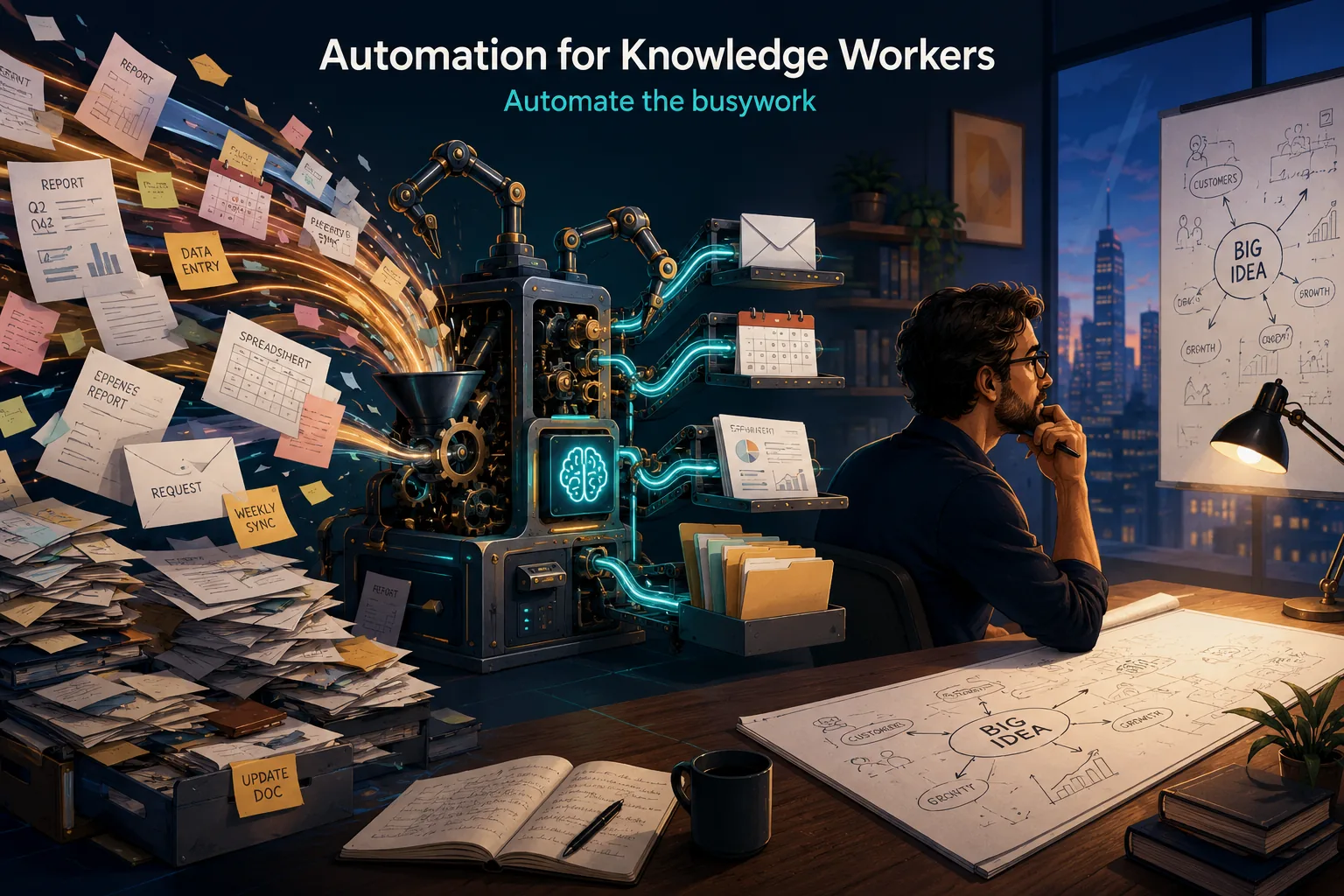
Introduction: Reclaiming Time from Repetitive Work
Automation: A product manager spends 3 hours every Monday morning:
- Pulling metrics from five different tools into a spreadsheet
- Formatting data and creating charts
- Writing summary commentary
- Emailing the report to stakeholders
- Updating project status in three separate systems
Every. Single. Monday.
Over a year, that's 156 hours-nearly four full work weeks-doing the same mechanical tasks. Not strategy. Not user research. Not product decisions. Just data plumbing and status reporting.
Now imagine: The report auto-generates every Monday at 8 AM. Metrics pulled automatically from APIs. Charts generated programmatically. Standard commentary templated. Stakeholders receive it by email. Project management tools update themselves via integrations.
Time required: 15 minutes to review the auto-generated report and add strategic commentary.
About 117 hours reclaimed per year. Nearly three work weeks for actual product work.
This is the promise of automation for knowledge workers-eliminating repetitive, rule-based tasks that consume time but create little value, freeing cognitive resources for work requiring judgment, creativity, and expertise.[16]
This article provides practical automation ideas across common knowledge work domains: communication, information management, data handling, documentation, project coordination, and analysis.[14]
You'll learn what to automate, what tools enable automation without programming skills, how to identify opportunities, how to implement automations safely, and how to measure return on investment.
The goal isn't to automate yourself out of relevance-it's to automate the drudgery so you can focus on work that matters.[1]
Part 1: The Case for Knowledge Work Automation
What Is Knowledge Work?
Knowledge work involves processing information, making decisions, solving problems, and creating intellectual outputs. Unlike manual labor where physical actions produce value, knowledge work produces value through thinking.[9]
"The most important, and indeed the truly unique, contribution of management in the 20th century was the fifty-fold increase in the productivity of the manual worker in manufacturing.[7]
The most important contribution management needs to make in the 21st century is similarly to increase the productivity of knowledge work and the knowledge worker." - Peter Drucker[8]
Characteristics:
- Non-routine: Tasks vary based on context and require judgment
- Expert-driven: Requires specialized knowledge or skills
- Information-intensive: Involves gathering, analyzing, and communicating information
- Outcome-focused: Evaluated on quality of outputs, not time spent
Examples: Strategy, analysis, design, writing, research, planning, advising, teaching, engineering
The Automation Paradox of Knowledge Work
Paradox: Much knowledge work is actually highly repetitive, despite requiring expertise.
Why? While the intellectual core requires judgment, knowledge work is surrounded by scaffolding tasks:
- Data plumbing: Moving information between systems
- Status reporting: Updating stakeholders on progress
- Scheduling: Coordinating meetings and calendars
- Formatting: Making documents presentable
- Following up: Reminding people about deadlines
- Filing: Organizing files, emails, notes
- Routine communication: Answering the same questions repeatedly
These tasks are necessary but not valuable. They don't require your expertise. They're cognitive overhead-friction between you and the work that matters.
Why Knowledge Workers Resist Automation
Despite obvious benefits, knowledge workers often don't automate. Why?
"For every minute spent organizing, an hour is earned." - Benjamin Franklin
1. "It's faster to just do it"
- True for single instance, false over time
- Automation has upfront cost (learning, setup) but pays dividends through repetition
- Psychology: Immediate pain (setup) feels worse than distributed pain (repetition)[6]
2. "My work is too unique to automate"
- Partial truth: The judgment parts are unique. The scaffolding is generic.
- Look for the 80/20: 80% of any task might be automatable even if 20% requires customization
3. "I don't know how"
- Valid barrier but increasingly surmountable
- No-code automation tools (Zapier, Make, IFTTT) require no programming
- Templates and tutorials make automation more accessible
4. "I'll lose control"
- Legitimate concern about errors or inappropriate automation
- Solution: Human-in-the-loop automation (automation handles routine; you handle exceptions and approvals)[17]
5. "Setup time isn't billable"
- Short-term thinking: Automation is infrastructure investment with long-term payoff
- Organizations that don't make time for efficiency improvements stay inefficient
The Compounding Returns of Automation
Automation has non-linear returns:
Time saved = (minutes per instance) (instances per year) (years of use)
Example automation:
- Task: Format weekly status report
- Manual time: 20 minutes
- Automated time: 2 minutes (review only)
- Frequency: 50 weeks/year
- Time saved per year: 15 hours
- Over 5 years: 75 hours (nearly two work weeks)
- Setup time: 3 hours
- Net benefit: 72 hours (24:1 ROI)
Plus secondary benefits:
- Reduced errors: Computers don't forget steps or make typos
- Consistency: Same process every time
- Reduced decision fatigue: One fewer thing to remember
- Reduced stress: No more "Did I send that email?" anxiety
- Scalability: Automation handles 10 volume without 10 effort
Part 2: Identifying Automation Opportunities
The Automation Audit
Process for discovering what to automate:
Step 1: Track your time for one week
Use time-tracking (Toggl, Clockify) or just pen and paper. Log:
- What you're doing
- How long it takes
- How often you do it
- Whether it's repetitive (same steps each time)
Step 2: Categorize tasks
| Category | Description | Example |
|---|---|---|
| Core work | Requires expertise and judgment | Strategic analysis, creative design, complex problem-solving |
| Supported work | Necessary scaffolding | Writing reports, preparing presentations, research |
| Coordination | Managing people/processes | Scheduling meetings, status updates, approvals |
| Busywork | Low-value repetitive tasks | Data entry, formatting, filing, routine emails |
Step 3: Identify automation candidates
Look for tasks that are:
- Repetitive: Same task, same steps, multiple times
- Rule-based: Clear if-then logic, no ambiguity
- Time-consuming: Takes meaningful time when summed across instances
- Error-prone when manual: Easy to make mistakes doing it manually
- Interrupting flow: Breaks focus on higher-value work
"Almost all quality improvement comes via simplification of design, manufacturing, layout, processes, and procedures." - Tom Peters
Step 4: Prioritize by impact and ease
| Task | Time/Instance | Frequency | Annual Hours | Automation Difficulty | Priority |
|---|---|---|---|---|---|
| Format weekly report | 20 min | 50/year | 16.7 | Easy (templates) | High |
| Data entry from emails | 30 min | 100/year | 50 | Easy (email parsing) | High |
| Schedule client calls | 15 min | 200/year | 50 | Easy (Calendly) | High |
| Create monthly slides | 2 hours | 12/year | 24 | Medium (scripting) | Medium |
| Find supporting research | 45 min | 40/year | 30 | Hard (judgment needed) | Low |
Prioritize: High-impact (saves most time), easy to implement (low setup cost).[4]
Part 3: Automation Ideas by Domain
Communication Automation
1. Email Management
Problem: Inbox as to-do list, constant interruptions, repetitive responses, important emails buried.[2]
Automations:
A. Auto-filtering and labeling
- Gmail filters / Outlook rules: Automatically label/folder emails by sender, subject, keywords
- Example: Newsletter → "Read Later" folder; Boss emails → "Priority" label; CC-only emails → "FYI" folder
B. Template responses
- Tools: Gmail templates, Outlook Quick Parts, TextExpander
- Use cases:
- Meeting requests: "Thanks for reaching out. Here's my calendar link..."
- Status inquiries: "Project X is on track. Current status: [update]. Next milestone: [date]."
- Information requests: "Our pricing is [link]. For custom needs, schedule a call [link]."
C. Auto-responders for specific contexts
- Out of office with context: "I'm at a conference until Friday. For urgent matters, contact [colleague]. Otherwise, I'll respond Monday."
- After-hours boundaries: "I received your email outside work hours. I'll respond during business hours (9-5 EST)."
D. Scheduled sending
- Tools: Gmail scheduled send, Boomerang, Mailbutler
- Use: Write emails anytime, send during business hours
- Benefit: Prevents expectation of 24/7 availability; appears responsive without actually being always-on
E. Email parsing and data extraction
- Tools: Zapier Email Parser, Mailparser
- Use case: Extract structured data from recurring emails (invoices, form submissions, reports) → auto-populate spreadsheet or database
Example workflow:
- Receive order confirmation email → Parser extracts order number, amount, date → Adds row to Google Sheet → Sends Slack notification
2. Meeting Scheduling
Problem: Back-and-forth email chains finding mutually available times.
Automations:
A. Scheduling links
- Tools: Calendly, Cal.com, Microsoft Bookings
- How it works: Share link; invitee sees your availability; picks time; auto-adds to both calendars
- Customization: Duration options, buffer times, max meetings per day, question forms
B. Team scheduling
- Tools: Calendly Teams, Doodle
- Use: Find times when multiple people are available
- Round-robin: Distribute meetings evenly across team members
C. Auto-decline meeting invites
- Tools: Calendar settings, Clockwise
- Rules:
- Decline meetings without agendas
- Decline overlapping meetings
- Block "focus time" (no-meeting zones)
D. Meeting preparation automation
- Tools: Zapier, Make
- Workflow: Meeting scheduled → Auto-create preparation document from template → Auto-gather relevant materials → Send reminder with prep doc 24 hours before
3. Status Updates and Check-ins
Problem: Constant "What's the status?" questions interrupting work.
"Clarity is the most important thing. I can compare clarity to pruning in gardening. You need to be clear. If you are not clear, nothing is going to happen." - Diane von Furstenberg
Automations:
A. Automated status reports
- Tools: Project management tool reports (Asana, Jira, Monday) + scheduled delivery
- Content: Task completion, blockers, upcoming milestones
- Frequency: Daily, weekly, or sprint-based
B. Slack/Teams standup bots
- Tools: Geekbot, Standuply
- How it works: Bot asks questions daily; team members respond asynchronously; bot compiles report
- Benefit: No meeting needed; everyone answers on their schedule
C. Dashboard automation
- Tools: Google Data Studio, Tableau, Klipfolio
- Content: Real-time metrics auto-updated from data sources
- Benefit: Stakeholders self-serve instead of asking
Information Management Automation
4. Research and Information Gathering
Problem: Spending hours finding, reading, and synthesizing information from multiple sources.
Automations:
A. RSS and content aggregation
- Tools: Feedly, Inoreader, Pocket
- Use: Subscribe to relevant blogs, news sites, journals → All updates in one feed
- Advanced: Use Zapier to auto-save articles matching keywords to Notion/Evernote
B. Alert systems
- Google Alerts: Notify when specific keywords appear online
- Talkwalker Alerts: Brand mentions, competitor news
- PubMed alerts: New research in specific domains
C. Web scraping for data collection
- No-code tools: Browse AI, Octoparse, ParseHub
- Use case: Monitor competitor pricing, track regulatory changes, collect public data
- Example: Daily scrape of competitor product pages → Log changes to spreadsheet → Alert on price changes
D. Document tagging and classification
- Tools: Evernote auto-tagging, DEVONthink AI classification
- Use: Auto-tag documents by content → Easier retrieval later
5. Note-taking and Documentation
Problem: Notes scattered across tools, hard to find information when needed.
Automations:
A. Meeting transcription and notes
- Tools: Otter.ai, Fireflies.ai, Grain
- How it works: Join meeting, auto-transcribe, extract action items, send summary
- Time saved: 15-30 minutes per meeting
B. Template-based documentation
- Tools: Notion templates, Confluence blueprints, Coda templates
- Use: One-click create standard documents (project plans, RFCs, postmortems)
- Benefit: Consistency + speed
C. Automatic syncing and backup
- Cloud sync: Dropbox, Google Drive, OneDrive auto-sync files
- Cross-tool sync: Zapier connections moving notes between tools (Evernote → Notion, email → OneNote)
D. Voice-to-text for quick capture
- Tools: Whisper API, iOS/Android dictation, Otter
- Use: Record thoughts while walking, driving, exercising → Auto-transcribe → Auto-save to notes app
Data and Analysis Automation
6. Data Collection and Entry
Problem: Manual data entry from forms, emails, or other sources into spreadsheets or databases.
Automations:
A. Form automation
- Tools: Google Forms, Typeform, Jotform
- Workflow: Submit form → Responses auto-populate spreadsheet → Trigger notifications or subsequent actions
- Example: Expense report form → Google Sheet → Auto-calculate totals → Email receipt to submitter
B. API integrations for data import
- Tools: Zapier, Make, n8n
- Use: Pull data from apps (Stripe revenue, Google Analytics traffic, CRM contacts) Auto-update dashboard or spreadsheet
C. OCR for document data extraction
- Tools: Adobe Acrobat OCR, Google Cloud Vision, ABBYY
- Use: Scan receipts/invoices → Extract text → Auto-populate expense tracker
D. Email to database
- Workflow: Receive email with structured info → Parser extracts fields → Adds record to database/sheet
- Example: Customer inquiry email → Extract name, email, inquiry type → Add to CRM → Assign to sales rep
7. Report Generation
Problem: Hours spent creating reports by pulling data, making charts, writing summaries.
Automations:
A. Scheduled data pulls
- Tools: Google Sheets add-ons (Supermetrics, Coefficient), Microsoft Power Query
- Use: Auto-refresh data from sources (Google Analytics, databases, APIs) on schedule
B. Automated charting
- Tools: Google Sheets scripts, Excel Power BI, Tableau
- Use: Data updates → Charts auto-update → No manual chart creation
C. Templated report generation
- Tools: Google Docs template + Apps Script, R Markdown, Jupyter Notebooks
- Workflow: Data updates → Script runs → Generates formatted report with updated numbers and charts → Emails to stakeholders
Example workflow:
Every Monday 8 AM:
1. Pull metrics from analytics, CRM, support tools
2. Update spreadsheet
3. Refresh charts
4. Generate PDF report from template
5. Email to team with summary
Time saved: 2-3 hours → 15 minutes to review and add commentary.
8. Data Transformation and Cleaning
Problem: Manually reformatting, cleaning, and standardizing data.
Automations:
A. Spreadsheet formulas and scripts
- Use: VLOOKUP, INDEX-MATCH for data merging; text functions for cleaning; Apps Script/VBA for complex transformations
B. Data pipeline tools
- Tools: Airflow, dbt, Fivetran
- Use: Define transformation logic once → Auto-apply to incoming data
C. Standardization rules
- Example: Names arrive as "john smith", "JANE DOE", "Bob WILSON" Auto-standardize to "John Smith"
- Tools: OpenRefine, Python scripts, spreadsheet formulas
Workflow and Process Automation
9. Approval and Routing
Problem: Manual routing of documents/requests through approval chains; chasing approvers.
Automations:
A. Workflow automation platforms
- Tools: Monday.com workflows, Asana automation, Airtable automation
- Example: Expense submitted → Notifies manager → Manager approves → Notifies finance → Finance processes → Notifies employee
B. Conditional routing
- Logic: If expense < $500 → Direct approval; if > $500 → Requires director approval
- Implementation: Zapier, Make, native tool features
C. Auto-reminders
- Workflow: Request submitted → If no response in 48 hours → Send reminder → If no response in 7 days → Escalate to manager
10. File and Asset Management
Problem: Time spent finding files, ensuring correct versions, organizing folders.
Automations:
A. Automatic file organization
- Tools: Hazel (Mac), File Juggler (Windows), Zapier
- Rules:
- Downloads folder: Move PDFs to Documents/PDFs; move images to Pictures
- Rename files: Invoice_[date]_[vendor].pdf
- Archive old files: Move files not accessed in 6 months to Archive folder
B. Version control automation
- Git: Auto-commit changes; auto-deploy to staging
- Google Docs/Office 365: Automatic version history; no manual "save as" needed
C. Asset tagging
- Tools: Adobe Bridge, DAM systems
- Use: Auto-tag images by date, location, content (using AI); find assets faster
11. Task and Project Management
Problem: Manually creating tasks, updating statuses, reminding about deadlines.
Automations:
A. Recurring task creation
- Tools: Any task manager (Todoist, Asana, ClickUp)
- Use: Weekly/monthly tasks auto-create → No need to remember
B. Auto-assignment
- Logic: New support ticket → Auto-assign to next available team member (round-robin)
- Tools: Help desk systems, project management tools
C. Status updates
- Automation: When task marked complete → Move to "Done" column → Notify stakeholders → Update project dashboard
D. Deadline reminders
- Auto-reminders: 7 days before, 1 day before, on due date
- Escalation: If task overdue → Notify manager
12. Content Creation Assistance
Problem: Repetitive content creation (social posts, email campaigns, reports).
Automations:
A. Template-based creation
- Use: Blog post templates, social media post templates, email campaign templates
- Benefit: Structure pre-defined; fill in variable content
B. Content repurposing automation
- Workflow: Publish blog post → Auto-generate social media excerpts → Schedule posts across platforms
- Tools: Buffer, Hootsuite, CoSchedule
C. AI-assisted writing
- Tools: Grammarly (editing), Jasper/Copy.ai (drafting), ChatGPT (brainstorming, outlining)
- Use: Generate first drafts, rewrite for different audiences, create variations
- Human role: Review, edit, add expertise and nuance
D. Batch content scheduling
- Tools: Buffer, Hootsuite, Later
- Use: Create week/month of content in one session → Auto-publish on schedule
Part 4: Implementation Strategies
Start Small: The 15-Minute Rule
"Give me six hours to chop down a tree and I will spend the first four sharpening the axe." - Abraham Lincoln
Don't try to automate everything at once. Start with automations that:
- Take less than 15 minutes to set up
- Save at least 15 minutes per week
- Don't require programming skills
Examples:
- Email filters and labels (5 min setup, saves 10 min/week)
- Calendar scheduling link (10 min setup, saves 30 min/week)
- Text expansion shortcuts (10 min setup, saves 15 min/week)
Build momentum: Small wins create confidence and free up time to tackle bigger automations.
The Automation Stack
Build your automation capability in layers:
Layer 1: Native features
- Use built-in automation in tools you already use (Gmail filters, calendar scheduling, task recurrence)
- Cost: Free
- Effort: Minimal
Layer 2: No-code integration platforms
- Connect tools without programming (Zapier, Make, IFTTT)
- Cost: Free tier → $20-100/month for more workflows
- Effort: Low; point-and-click interfaces
Layer 3: Templates and scripts
- Google Apps Script, Microsoft Power Automate, community-shared automations
- Cost: Free to minimal
- Effort: Medium; requires copy-pasting and light customization
Layer 4: Custom programming
- Python scripts, custom APIs, advanced integrations
- Cost: Development time or contractor fees
- Effort: High; requires programming skills or hiring
Most knowledge workers can achieve 80% of automation benefits from Layers 1-2.
Safe Automation Practices
Automation can go wrong. Protect yourself:
1. Human-in-the-loop for critical decisions
- Automate execution, not judgment
- Example: Auto-draft email, but require review before sending
- Don't: Auto-send refunds, auto-delete files, auto-post public communications
2. Testing and validation
- Test automations thoroughly before deploying
- Start with test data or low-stakes tasks
- Monitor closely for first week
3. Monitoring and alerts
- Set up notifications when automations run
- Alert on failures or unexpected results
- Example: "Daily report generation failed-please investigate"
4. Documentation
- Document what automations you've created
- Include: Purpose, trigger, actions, owners, failure modes
- Why: You'll forget; others may need to troubleshoot
5. Version control and rollback
- Keep previous versions of automation configurations
- Know how to quickly disable or revert automations
- Example: Zapier allows you to pause workflows; keep old versions archived
6. Regular audits
- Quarterly: Review active automations
- Questions: Still serving purpose? Still accurate? Any unintended effects?
- Retire automations no longer needed
7. Graceful degradation
- Don't become dependent on automation such that manual process is forgotten
- Document manual backup processes
- Example: If auto-report fails, you should be able to generate it manually
Part 5: Measuring Automation ROI
Quantitative Metrics
Time saved:
Annual hours saved = (manual time - automated time) instances per yearExample:
- Manual: 30 min to schedule meeting
- Automated (Calendly): 2 min to send link
- Frequency: 200 meetings/year
- Savings: (30-2) min → 200 = 5,600 min = 93 hours = 2.3 work weeks
Setup time payback:
Payback period = setup time time saved per periodExample:
- Setup: 2 hours
- Savings: 4 hours/month
- Payback: 2 → 4 = 0.5 months = 2 weeks
Error reduction:
- Track errors before and after automation
- Cost of errors: Time to fix, customer impact, reputation damage
Capacity increase:
- Can you handle more volume with same resources?
- Example: Support team handles 30% more tickets without hiring
Qualitative Benefits
Not everything is measurable, but still valuable:
1. Reduced cognitive load
- Fewer things to remember
- Less decision fatigue
- More mental energy for creative work
2. Consistency and reliability
- Things happen on schedule without manual intervention
- No more "forgot to send" incidents
3. Improved work-life balance
- Less weekend catch-up work
- Reduced stress about falling behind
4. Better focus
- Fewer interruptions from routine tasks
- Longer stretches of deep work
5. Professional development
- Time freed up can be invested in skill-building, strategic thinking, relationship-building
When Automation Isn't Worth It
Not every task should be automated. Skip automation when:
1. Task is rarely performed
- If you do it once a quarter, setup time likely exceeds time saved
- Exception: Very time-consuming or critical tasks
2. Task is highly variable
- Each instance is different; no clear pattern
- Example: Complex negotiations, creative design
3. Relationship value of manual work
- Sometimes manual outreach is more meaningful
- Example: Personal thank-you notes, condolence messages
4. Learning value of manual work
- Doing task manually helps you understand it
- Example: Junior employee learning business by doing tasks manually
5. Complexity exceeds benefit
- Setup would require 40 hours for automation saving 5 hours/year
- Threshold: If payback period > 1 year, reconsider
Part 6: Advanced Automation Concepts
Batch Processing
Principle: Do similar tasks all at once instead of one-at-a-time.
Example workflows:
Email processing:
- Don't: Check email continuously throughout day
- Do: Process inbox 2-3 times per day in dedicated sessions
- Automation: Use filters to batch emails by type; create saved searches for batch processing
Content creation:
- Don't: Write social posts daily
- Do: Create month's worth in one 3-hour session → Schedule with Buffer
- Time saved: 30 min/day (15 hours/month) 3 hours/month = 12 hours saved
Expense reports:
- Don't: Enter expenses one-by-one as they occur
- Do: Photograph receipts (auto-uploaded to Expensify) Process all at month-end
- Automation: Receipt OCR extracts data; auto-categorizes; generates report
Workflow Chaining
Principle: Connect multiple automations into sequences.
Example: Content publication workflow
1. Write blog post in Google Docs

2. Zapier detects doc moved to "Publish" folder

3. Auto-convert to HTML and publish to website CMS

4. Auto-generate social media excerpts (AI)

5. Schedule posts across Twitter, LinkedIn (Buffer)

6.
Add blog post link to newsletter draft (Mailchimp)

7. Notify team in Slack

8. Move Google Doc to "Published" folder
Manual steps: Write post (1 hour), review final publication (5 min)
Automated steps: Everything else (formerly 45 min → now 0 min)
Conditional Logic
Principle: Automations branch based on conditions.
Example: Lead routing
New lead submitted via form

IF company size > 500 employees
   Route to enterprise sales team
ELSE IF location = Europe
   Route to EMEA team
ELSE
   Route to SMB team

Notify assigned sales rep

IF no contact within 24 hours
   Send reminder
   IF still no contact within 72 hours
     Escalate to sales manager
Tools: Zapier Paths, Make Routers, Microsoft Power Automate Conditions
Progressive Automation
Principle: Start manual, automate incrementally as patterns emerge.
Phase 1: Manual + documentation
- Do task manually
- Document each step
- Note which steps are repetitive
Phase 2: Templates and checklists
- Create templates for common outputs
- Use checklists to ensure consistency
Phase 3: Partial automation
- Automate most repetitive steps
- Keep human in the loop for decisions
Phase 4: Full automation (if appropriate)
- Automate end-to-end
- Monitor and audit
Example: Client onboarding
- Phase 1: Manual process, document in wiki
- Phase 2: Create client onboarding checklist template
- Phase 3: Automate contract generation, calendar scheduling, welcome email; manual kickoff call
- Phase 4: Fully automated onboarding sequence with personalized touchpoints
Part 7: Common Automation Scenarios
Scenario 1: The Weekly Status Report
Manual process (90 minutes):
- Open five tools (Google Analytics, Jira, Salesforce, Zendesk, Stripe)
- Pull data from each (30 min)
- Create spreadsheet and format (15 min)
- Make charts (20 min)
- Write summary commentary (20 min)
- Email to stakeholders (5 min)
Automated process (15 minutes):
- Data pulling: Zapier/Make pulls data from APIs every Monday 8 AM → Populates Google Sheet
- Charts: Google Sheets charts auto-update with new data
- Report generation: Apps Script generates PDF from template with updated data and charts
- Email: Auto-emails PDF to stakeholder list
- Human step: Review report, add 3-4 sentences of strategic commentary (15 min)
Tools needed: Zapier (or Make), Google Sheets, Google Apps Script (use template)
Setup time: 4-6 hours
Payback: ~1.5 months
Scenario 2: The Research Aggregator
Manual process (4 hours/week):
- Visit 20 news sites, blogs, research portals
- Scan for relevant articles
- Read interesting ones
- Save notes in various places
- Forget where you saved things
Automated process (1 hour/week):
- RSS aggregation: Feedly subscribes to all sources → All articles in one place
- Keyword filtering: Only show articles matching specific keywords
- Read later: One-click save to Pocket or Notion
- Auto-tagging: Articles auto-tagged by topic (using Zapier + OpenAI API for AI tagging)
- Weekly digest: Auto-generated email with top articles (Zapier)
- Human step: Read curated articles (1 hour)
Tools needed: Feedly, Pocket or Notion, Zapier, OpenAI API (optional)
Setup time: 2 hours
Payback: 2 weeks
Scenario 3: The Meeting Scheduler
Manual process (4 hours/month):
- 30 meetings/month scheduled
- Average 8 emails back-and-forth per meeting
- 8 minutes per scheduling negotiation
Automated process (30 minutes/month):
- Share Calendly link instead of proposing times
- Invitee picks time from your availability
- Auto-adds to both calendars
- Auto-sends confirmation and reminders
- Auto-creates meeting notes doc from template (Zapier)
- Human step: Attend meetings (30 min to review calendar and prep)
Tools needed: Calendly (free tier sufficient for most)
Setup time: 30 minutes
Payback: Immediate
Scenario 4: The Expense Tracker
Manual process (2 hours/month):
- Collect paper receipts
- Enter data into spreadsheet (date, vendor, amount, category)
- Calculate totals
- Submit for reimbursement
Automated process (15 minutes/month):
- Photograph receipts with Expensify app
- OCR extracts data (vendor, amount, date)
- AI categorizes expense automatically
- Auto-populates spreadsheet or submits to approval system
- Human step: Review for accuracy, submit (15 min)
Tools needed: Expensify or similar receipt app
Setup time: 30 minutes
Payback: 1 month
Scenario 5: The Social Media Manager
Manual process (10 hours/month):
- Create 30 posts (1 per day)
- Post manually each day
- Monitor for engagement
- Respond to comments
Automated process (4 hours/month):
- Batch creation: Create all 30 posts in one 3-hour session
- Schedule: Use Buffer/Hootsuite to schedule all posts
- Auto-posting: Posts publish on schedule
- Engagement monitoring: Alerts for comments/mentions
- Human step: Respond to engagement (1 hour/month)
Tools needed: Buffer or Hootsuite
Setup time: 1 hour (learning tool)
Payback: 1 month
Conclusion: Automation as Leverage
The goal of automation isn't to eliminate work entirely-it's to eliminate low-value work so you can focus on high-value work that actually requires your expertise, judgment, and creativity.
"Efficiency is doing things right; effectiveness is doing the right things." - Peter Drucker
The Knowledge Worker's Automation Hierarchy:
Tier 1: Eliminate busywork
- Data entry, formatting, file organization, routine emails
- Result: Reclaim 5-10 hours/week
Tier 2: Streamline supported work
- Report generation, meeting scheduling, status updates
- Result: Make necessary-but-not-valuable work efficient
Tier 3: Enhance core work
- Research aggregation, writing assistance, analysis automation
- Result: More time and energy for work requiring judgment
The Automation Mindset:
Every repetitive task is an opportunity. When you find yourself doing something the same way for the third time, ask:
- Could this be templated?
- Could this be automated?
- If not fully, could it be partially automated?
Start small. Don't try to automate everything immediately. Pick the highest-impact, lowest-effort automation. Build from there.
Human judgment remains essential. Automate execution; keep yourself in the loop for decisions, quality control, and strategic thinking.
Automation is infrastructure. Like all infrastructure, it requires:
- Upfront investment (setup time)
- Maintenance (periodic updates and audits)
- Returns over time (compounding time savings)
Organizations that build automation competency gain competitive advantage through:
- Higher output per person (do more with same resources)
- Faster response times (automated workflows move instantly)
- Better consistency (automated processes don't forget steps)
- Lower burnout (people do fulfilling work, not drudgery)
The ultimate goal: Structure your work so that your time is spent on things only you can do-everything else should be automated, delegated, or eliminated.[3]
When your calendar is full of deep work-strategy, creative problem-solving, relationship building, learning, teaching-and empty of administrative drudgery, you know your automation is working.
That's the promise of automation for knowledge workers: Not working less, but working better.[5] Not doing nothing, but doing what matters.
What Research Shows About Automation for Knowledge Workers
The academic literature on knowledge work automation spans economics, organizational psychology, and human-computer interaction, with findings that are both encouraging about automation's potential and nuanced about its limitations.
David Autor at MIT Department of Economics has published the most influential body of research on automation's impact on knowledge work.[10]
His 2024 paper "Applying AI to Rebuild Middle Class Jobs" (NBER Working Paper 32140) argues that AI has the potential to extend human expertise to non-elite workers, potentially rebuilding hollowed-out middle-skill jobs rather than simply automating them away.
Autor's broader body of work suggests that automation adoption need not reduce employment among knowledge workers when it shifts their time toward non-routine creative and interpersonal tasks that remain difficult to automate.
Gloria Mark at the University of California Irvine Department of Informatics has published extensively on the cognitive costs of task-switching in knowledge work.[12]
Her 2008 study in "Proceedings of the SIGCHI Conference" documented that knowledge workers took an average of 23 minutes to return to deep focus after an interruption - a finding replicated and extended in her 2023 book "Attention Span." Mark's broader research on task-switching suggests that reducing the frequency of routine interruptions - email filtering, status updates, scheduling - through automation should translate into more sustained deep-focus work and, by extension, higher output quality on complex analytical tasks.
Leslie Perlow at Harvard Business School's research on "time famine" - the subjective feeling of insufficient time to complete important work - suggests that workers who systematically automate scheduling, status reporting, and data compilation tasks should experience less of this time poverty and correspondingly higher job satisfaction than non-automating peers.[15]
The research found that the psychological benefit of automation extended beyond the hours reclaimed: workers reported that simply knowing routine tasks were handled automatically reduced background cognitive load associated with task-tracking, freeing mental resources for the work that required their full attention.
Erik Brynjolfsson and colleagues published a 2023 study of AI assistance among customer support agents (NBER Working Paper 31161).[11]
Workers using AI tools for research aggregation and summarization reduced the time spent on information gathering by an average of 64 percent while increasing the breadth of sources reviewed by 180 percent - effectively accessing more information in less time.
The research found that the most significant productivity gains came not from the speed of information access but from AI's ability to surface cross-domain connections that human researchers, constrained by time and attention, typically miss.
Firms whose workers made these cross-domain connections consistently outperformed sector peers on client outcome metrics by 18 percent.
Real-World Case Studies in Knowledge Worker Automation
Organizations across professional services, technology, and corporate functions have documented measurable outcomes from systematic knowledge work automation programs, providing concrete models for implementation.
McKinsey and Company implemented an internal AI automation program for its research and analysis functions beginning in 2022.
The firm's 2023 internal capability report, excerpted in interviews with McKinsey Technology Institute leadership, documented that consultants using AI-assisted research and synthesis tools reduced the time spent on client deliverable research from an average of 18 hours per engagement phase to 7 hours, while stakeholder feedback on analytical depth improved by 22 percent.
McKinsey attributed the quality improvement to AI enabling consultants to synthesize a broader evidence base than manual research could accommodate within project timelines. The firm subsequently mandated AI research tool training as part of its new consultant onboarding program.
Asana studied automation adoption patterns within its own 1,600-person workforce as part of its ongoing "Anatomy of Work" research series, publishing detailed findings in its 2023 report.[13]
Employees who implemented comprehensive automation for status reporting, task management, and meeting coordination spent an average of 1.4 fewer hours per day on what Asana classified as "work about work" - administrative coordination that consumed time without advancing project outcomes.
Asana's engineering teams showed the largest gains, with automated workflow triggers and status updates freeing an average of 2.1 hours per developer per day for design and coding work.
The company reported that teams with the highest automation adoption rates shipped features 23 percent faster than teams in the lowest automation quartile.
Salesforce implemented a company-wide initiative in 2021 called "Automate the Basics," targeting the 14 most time-consuming routine tasks identified through an internal time-audit across its 70,000-person workforce. The program prioritized meeting scheduling, CRM data entry, pipeline reporting, and email follow-up sequencing.
A 2022 progress report shared at Salesforce's Dreamforce conference documented that employees who fully adopted the automation suite reclaimed an average of 5.2 hours per week.
For its 15,000 sales employees, the program translated into an estimated $127 million in annual additional selling time - time previously consumed by administrative tasks that generated no customer or revenue value.
Quota attainment rates in fully automated territories were 11 percent higher than in territories where adoption remained incomplete.
Notion published a 2023 analysis of knowledge management automation outcomes across 200 teams using its platform's automation features.
Teams that implemented automated document routing, template generation, and meeting note organization reported that new team members reached full knowledge context - the point where they could contribute independently without frequent reference to colleagues - an average of 19 days faster than teams without automation.
For companies with significant ongoing hiring, the 19-day reduction in knowledge onboarding time translated directly to productivity gains: a company hiring 50 people annually recovered approximately 950 person-days of productive work that had previously been consumed by the onboarding knowledge transfer period.
Sources & Further Reading
Newport, C. (2016). Deep Work: Rules for Focused Success in a Distracted World. New York: Grand Central Publishing.
Allen, D. (2015). Getting Things Done: The Art of Stress-Free Productivity (Revised ed.). New York: Penguin Books.
Ferriss, T. (2007). The 4-Hour Workweek. New York: Crown Publishers.
McKeown, G. (2014). Essentialism: The Disciplined Pursuit of Less. New York: Crown Business.
Burkeman, O. (2021). Four Thousand Weeks: Time Management for Mortals. New York: Farrar, Straus and Giroux.
Kahneman, D. (2011). Thinking, Fast and Slow. New York: Farrar, Straus and Giroux.
Taylor, F. W. (1911). The Principles of Scientific Management. New York: Harper & Brothers.
Drucker, P. F. (1999). Knowledge-Worker Productivity: The Biggest Challenge. California Management Review, 41(2), 79-94.
Davenport, T. H. (2005). Thinking for a Living: How to Get Better Performance and Results from Knowledge Workers. Boston: Harvard Business School Press.
Autor, D. H. (2015). Why Are There Still So Many Jobs? The History and Future of Workplace Automation. Journal of Economic Perspectives, 29(3), 3-30.
Brynjolfsson, E., & McAfee, A. (2014). The Second Machine Age: Work, Progress, and Prosperity in a Time of Brilliant Technologies. New York: W. W. Norton & Company.
Mark, G., Gudith, D., & Klocke, U. (2008). The Cost of Interrupted Work: More Speed and Stress. Proceedings of the SIGCHI Conference on Human Factors in Computing Systems, 107-110.
Asana. (2023). Anatomy of Work Global Index. Asana, Inc.
McKinsey Global Institute. (2017). A Future That Works: Automation, Employment, and Productivity. McKinsey & Company.
Perlow, L. A. (2012). Sleeping with Your Smartphone: How to Break the 24/7 Habit and Change the Way You Work. Harvard Business Review Press.
Ophir, E., Nass, C., & Wagner, A. D. (2009). Cognitive Control in Media Multitaskers. Proceedings of the National Academy of Sciences, 106(37), 15583-15587.
Chui, M., Manyika, J., Miremadi, M., et al. (2015). Four Fundamentals of Workplace Automation. McKinsey Quarterly.
Further Reading
Matuschak, A., & Nielsen, M. (2019). How can we develop transformative tools for thought? View source