
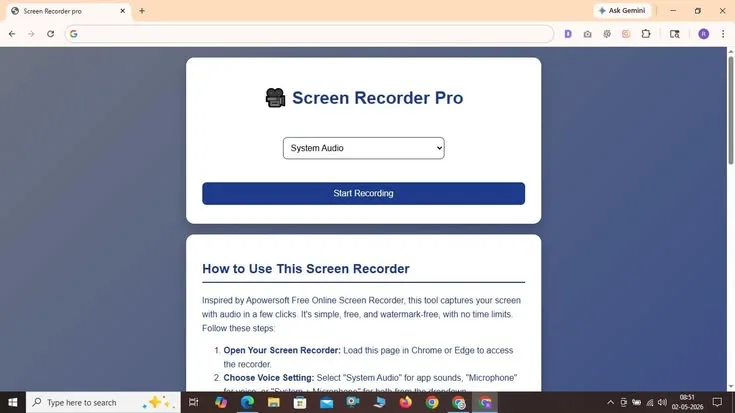
Recorded walkthroughs, product demonstrations, bug reports, and onboarding materials have made screen capture part of ordinary distributed work. Top screen recording software now ranges from free open-source applications to async communication platforms and professional production suites, so the right choice depends on the purpose of the recording.
Screen recording used to be a niche capability - the domain of software instructors, technical support teams, and the occasional YouTube tutorial creator. In a distributed work environment, that niche has become the mainstream.[11]
Async video has replaced a meaningful proportion of meetings; product demos are recorded rather than given live; bug reports include screen capture rather than text descriptions; onboarding happens through libraries of recorded walkthroughs rather than in-person sessions.
The tools available for screen recording have matured accordingly. The market now covers everything from free, open-source powerhouses (OBS Studio, ShareX) to dedicated async communication platforms (Loom, Droplr) to professional video production suites (Camtasia, ScreenFlow) to fast, elegant Mac utilities (CleanShot X).
Each reflects a different theory of what screen recording is for, and choosing the wrong tool for the job produces results that are either overproduced or underpowered for the actual use case.
This guide covers ten tools in depth: Loom, OBS Studio, Camtasia, ScreenFlow, Bandicam, Movavi Screen Recorder, Screenpal, Droplr, CleanShot X, and ShareX. For each tool the analysis covers recording quality, editing capabilities, sharing workflows, platform support, pricing, and the specific use cases where it outperforms the field.
"A video is worth a thousand emails. The challenge is making it worth the sender's time as well as the viewer's." This principle captures why async video adoption has grown fastest in tools like Loom, which minimise production time alongside consumption time.
Key Definitions
Screencasting: The process of recording the contents of a computer screen, typically with audio narration, to create a tutorial, demonstration, or presentation.
Async video: Video messages sent asynchronously, without requiring the recipient to be present at the time of recording. Used as a replacement for meetings or text messages when visual demonstration adds clarity.
Virtual camera: A software layer that makes a processed video feed - with overlays, backgrounds, or scene switching - available as a camera input in video call applications like Zoom or Google Meet.
Scene composition: In screen recording tools that support it (primarily OBS), a scene is a pre-configured arrangement of sources - a screen capture, webcam feed, background image, and text overlay - that can be switched between instantly during a recording.
Hardware-accelerated encoding: Using dedicated GPU hardware (NVIDIA NVENC, AMD VCE, Intel Quick Sync) to compress video rather than the CPU, reducing performance impact during recording.
Lossless recording: Capturing video without compression, resulting in maximum quality and maximum file size. Used when footage will be post-edited and compressed for distribution.
At a Glance: The Ten Tools Compared
| Tool | Best For | Platform | Editing | Sharing | Price |
|---|---|---|---|---|---|
| Loom | Async team communication | Win/Mac/Web | Basic trim | Instant link | Free / $12.50/mo |
| OBS Studio | Streaming, complex recording | Win/Mac/Linux | No | Manual | Free |
| Camtasia | Professional tutorials | Win/Mac | Full | Export | $179.88/yr |
| ScreenFlow | Mac tutorial production | Mac only | Full | Export | $149 one-time |
| Bandicam | Game recording on Windows | Win only | Basic | Manual | Free / $40 |
| Movavi | Simple recording | Win/Mac | Basic | Export | $50/yr |
| Screenpal | Education, managed environments | Win/Mac/Web | Basic | Upload | Free / $4/mo |
| Droplr | Team screenshots and clips | Win/Mac | Annotation | Instant link | $8/mo |
| CleanShot X | Mac documentation workflows | Mac only | Annotation | Cloud link | $29 one-time |
| ShareX | Windows power users | Win only | Annotation | 80+ destinations | Free |
Loom
Loom is the defining tool of the async video category. Its premise is simple: recording and sharing a screen video should be as fast as sending an email. You click a button, record, and Loom handles hosting, transcription, and a shareable link instantly.[1]
The friction of traditional video production is largely eliminated, which is why Loom's user base has grown to over 25 million people.
Recording and Sharing Workflow
Loom's Chrome extension or desktop app allows one-click recording with simultaneous screen, webcam, and microphone capture. When the recording stops, Loom immediately begins processing and provides a shareable URL.
The recipient can watch the video in a browser without downloading anything, add emoji reactions, leave time-stamped comments, and navigate with an auto-generated transcript.
This loop - record, link, watch, comment - removes all the friction that has historically made video communication feel too slow relative to text. A Loom about a complex code review, a design decision, or a product bug can communicate in three minutes what a text explanation would struggle to convey clearly in three paragraphs.[12]
AI Features
Loom's AI layer, included on Business and higher plans, automatically generates transcripts, summaries, and action items from recorded videos. It can also identify and remove filler words from recordings, reducing the perceived production quality gap between Loom and polished edited videos.
The AI summary feature is particularly useful for async team updates, where viewers want to know if the video is relevant before committing to watching it.
Team Library
Teams can organise Loom videos in shared libraries with folder structures, allowing accumulated video documentation to be searchable and discoverable.
This transforms Loom from a messaging tool into a knowledge repository over time - a library of recorded decisions, walkthroughs, and explanations that new team members can search and review.
Limitations
The five-minute limit on the free tier is restrictive for anything beyond quick status updates. Loom is not a video editor - while you can trim clips and add a few callouts, it cannot support the kind of annotation, zoom-and-pan, or multi-clip editing that Camtasia or ScreenFlow provide.
It is a communication tool with basic editing, not a production tool. Video quality is also capped compared to OBS or Camtasia at higher resolutions.
Pricing
Starter: Free (25 videos, five-minute limit). Business: $12.50/user/month. Business + AI: $16/user/month.
OBS Studio
OBS (Open Broadcaster Software) Studio is the gold-standard free, open-source recording and streaming tool.[2] It is used by game streamers, professional broadcasters, educators, and developers who need complete control over every aspect of their recording setup. No paid tool in this comparison has more raw capability.
Scene System
OBS's scene and source system is its most powerful feature. A scene is a named layout combining any number of sources: a full-screen capture, a specific application window, a webcam feed, an image overlay, a browser source, or audio from multiple inputs.
You can switch between scenes instantly during a recording, allowing polished presentations with cutaways to demos, slides, or different camera angles. Streamers use scene switching to transition between gameplay and face-cam, but the same capability is equally useful for professional product demonstrations.
Filters and Audio
OBS includes audio and video filters: noise suppression, compression, gain control, EQ, and colour correction. These allow you to improve recording quality without external hardware, particularly for audio in environments with background noise.
The noise suppression filter alone meaningfully improves recording quality in typical home-office conditions.
Virtual Camera
OBS's virtual camera feature makes its entire scene output available as a camera input in any application. This allows you to present a professionally composed layout - your face in the corner, slides in the background, animated overlays - in a standard Zoom or Teams call without the other participants seeing your actual environment.
Limitations
OBS's learning curve is significant. The interface is designed for power users and reflects a broadcast control room mental model that is unfamiliar to most office workers. First-time users will spend several hours configuring scenes, audio levels, and output settings before producing a polished recording.
It also requires more capable hardware than lightweight tools for smooth recording at high resolutions and frame rates.
Pricing
Free and open source.
Camtasia
Camtasia by TechSmith is the most complete solution for professional tutorial and training content production.[3]
It combines a capable screen recorder with a video editor specifically designed for software demonstrations, complete with annotation tools, cursor effects, callouts, zoom-and-pan, chapter markers, quizzes, and multi-track editing.
Annotation and Callout System
Camtasia's callout and annotation library includes arrows, labels, highlights, spotlight effects, and animated graphics. The cursor highlighting and magnification features allow viewers to follow complex software workflows without losing track of pointer movement.
These details separate professional training videos from casual walkthroughs - the difference between a video that guides and one that documents.
Zoom and Pan
The zoom-and-pan feature allows post-production zoom into specific screen areas, simulating a camera operator following the relevant action.
For recording software with small UI elements - configuration menus, developer tools, complex spreadsheets - this is essential for watchability, allowing full-resolution recording that can be cropped and zoomed in post without quality loss.
Quizzes and Interactivity
Camtasia supports embedded quizzes and branching interactions that can be published to SCORM-compatible learning management systems. This makes it appropriate for formal e-learning development where comprehension tracking matters.
The quiz system is not as sophisticated as dedicated LMS authoring tools, but for video-primary e-learning content it is sufficient for most training use cases.
Assets and Templates
Camtasia includes an extensive library of intro animations, lower-thirds, background music, and transitions designed for tutorial content. These assets allow less experienced video editors to produce polished results without starting from scratch.
Pricing
Subscription: $179.88/year. Perpetual licence: $299.99 per major version. Available for Windows and macOS.
ScreenFlow
ScreenFlow is the Mac-native alternative to Camtasia, produced by Telestream.[4] It is consistently praised for its intuitive editing timeline, high-quality recording (including Retina display capture), and tight integration with macOS.
Recording Quality
ScreenFlow records at native Retina resolution and supports high-frame-rate capture, producing videos where small UI elements, text, and animations are crisp at full resolution.
The 4K recording capability is particularly valuable for software demonstrations where fine detail - dialog box text, code editor syntax highlighting, console output - needs to be legible in the final video.
Editing Timeline
ScreenFlow's editing interface uses a standard multi-track timeline familiar from Final Cut Pro and DaVinci Resolve, making it easier for video professionals to adopt than Camtasia's more tutorial-specific interface.
For editors coming from a video production background who need to produce software demos or tutorials, ScreenFlow's approach is more intuitive.
Callouts and Annotations
ScreenFlow includes callouts, text overlays, and cursor highlights comparable to Camtasia. Its annotation tools are slightly less extensive than Camtasia's but cover most tutorial production needs, particularly for Mac-centric software documentation.
Limitations
Mac only. Windows users need Camtasia or another alternative. There is no SCORM export or interactive quiz system.
Pricing
One-time purchase starting at $149 for the standard version. Subscriptions available from $12/month.
Bandicam
Bandicam is a Windows screen recorder optimised for game capture and high-performance recording. Its hardware-accelerated encoding allows recording games at high frame rates with minimal performance impact, while also supporting standard desktop and application recording.
Hardware Acceleration
Bandicam uses NVIDIA NVENC, AMD VCE, and Intel Quick Sync hardware-accelerated encoding, which offloads compression work from the CPU.[5] This is particularly valuable when recording graphics-intensive content where CPU-based encoding would cause frame drops or game stuttering.
For game content, Bandicam consistently produces smoother recordings than software-based encoders on equivalent hardware.
Benchmark Mode
Bandicam's benchmark mode can measure game performance (FPS) during recording, providing useful diagnostics for content creators who discuss hardware performance alongside gameplay.
Limitations
Windows only. Basic editing only - trimming and mixing. Not suitable for professional tutorial production. The free version has a ten-minute limit and adds a watermark.
Pricing
Free (ten-minute limit, watermark). Full licence: $39.95 one-time.
Movavi Screen Recorder
Movavi Screen Recorder is a straightforward, accessible tool for Windows and Mac users who need clean recordings without OBS complexity or Camtasia pricing.[6] It handles screen, webcam, and audio recording with basic editing - trimming, titles, and transitions - adequate for most casual use cases.
Simplicity as a Feature
Movavi's value proposition is clarity of design. Where OBS requires configuring scenes and sources, Movavi presents a simplified region-selection interface and a few clearly labelled recording options.
For users who record occasionally and do not want to invest in learning a complex tool, Movavi provides adequate results with minimal setup time.
Pricing
Personal: $49.95/year or $79.95 lifetime. Business licence: $79.95/year.
Screenpal
Screenpal (formerly Screencast-O-Matic) is one of the oldest browser-based screen recording tools and remains popular in educational contexts for its simplicity and cross-platform availability.
It operates via a browser launcher, requiring no full software installation, which makes it easier to deploy in managed school or enterprise environments.
Education Focus
Screenpal is commonly used by teachers for recording lesson content and by students for project submissions.[7] Its simplicity - record, upload, share - fits educational use cases where the audience is students and the goal is clarity rather than production quality.
The video hosting and sharing platform is optimised for classroom distribution, with teacher and class management features in paid plans.
Limitations
The 15-minute free tier limit and watermark push professional use cases to paid plans. Editing capabilities are basic compared to Camtasia or ScreenFlow.
Pricing
Free (15-minute limit, watermark). Solo Deluxe: $4/month. Solo Premier: $7/month.
Droplr
Droplr is a screenshot and screen recording tool focused on team collaboration, combining capture with cloud storage and link-based sharing.[8] It is more tightly integrated into team workflows than Loom - files, screenshots, and recordings all share the same shared library and link system.
Capture and Annotate
Droplr's screenshot tools include annotation, blur (for sensitive information), and direct link sharing. Screen recordings are short-form (up to ten minutes) with webcam overlay. The annotation tools are applied directly on screenshots before sharing, making it fast to mark up interface issues or provide visual feedback on designs.
Workflow Integration
The strength is in workflow integration: Slack, Jira, Trello, and other project management integrations allow Droplr captures to be attached directly to tasks and issues. For development teams that report bugs with annotated screenshots, this integration reduces the steps between capturing a screen and attaching it to the relevant ticket.
Pricing
Solo: $8/month. Teams: $10/user/month. Business: $15/user/month.
CleanShot X
CleanShot X is a Mac-only screenshot and screen recording utility that replaces the macOS native screenshot tool with a substantially more capable system.[9] It is less a full-featured video editor and more a precision capture tool for documentation, design, and developer workflows.
Scrolling Capture and Annotation
CleanShot X's scrolling capture stitches a full-length scrollable page into a single image by automatically scrolling and capturing in segments. The annotation tools - arrows, callouts, blur, frames - are applied in a quick-access overlay that appears immediately after capture without opening a separate application.
This speed is the core value proposition: the time from capture to annotated, shared screenshot is measured in seconds rather than minutes.
Cloud Hosting
CleanShot Cloud provides a personal cloud storage account for all captures, generating instant shareable URLs. For teams that share documentation screenshots frequently, this eliminates the upload step. The URL is copied automatically, allowing paste-to-Slack or paste-to-Jira workflows without any manual browser navigation.
Limitations
Mac only. Short video recording only - not suitable for tutorial production or professional screencasts. No collaborative or team features.
Pricing
One-time licence: $29. Includes CleanShot Cloud storage. Mac App Store version: $8.99 (without cloud features).
ShareX
ShareX is a free, open-source screen capture and recording tool for Windows that covers screenshots, scrolling captures, GIF recording, full video recording, OCR, URL shortening, and upload to 80-plus hosting destinations.[10] It is the most capable free tool for Windows users who want comprehensive capture automation.
Workflow Automation
ShareX's workflow system allows automated post-capture actions: upload to a specific destination, copy URL to clipboard, open in an image editor, apply a watermark, or trigger a custom script. Power users configure complex multi-step workflows that eliminate repetitive manual steps in documentation production.
A developer capturing a bug screenshot can have it automatically uploaded to a company S3 bucket and the URL copied to the clipboard in a single keyboard shortcut.
GIF Recording
ShareX's GIF recording mode captures short screen interactions as animated GIFs, which are useful for demonstrating UI interactions in bug reports or pull request descriptions without embedding a full video. GIF quality is configurable and the file size management options are more capable than most dedicated GIF tools.
Limitations
Windows only. The configuration interface is complex and rewards investment in setup. Not suitable for polished video production - recording output is functional but lacks the encoding quality of hardware-accelerated tools.
Pricing
Free and open source.
Detailed Feature Comparison
| Feature | Loom | OBS | Camtasia | ScreenFlow | Bandicam | Screenpal | Droplr | CleanShot X | ShareX |
|---|---|---|---|---|---|---|---|---|---|
| Webcam overlay | Yes | Yes | Yes | Yes | Yes | Yes | Yes | Yes | No |
| AI transcription | Yes | No | No | No | No | No | No | No | No |
| Zoom and pan | Limited | No | Yes | Yes | No | No | No | No | No |
| Annotations | Basic | No | Full | Full | No | Basic | Yes | Yes | Yes |
| Instant share link | Yes | No | No | No | No | Upload | Yes | Yes | Configurable |
| Mac support | Yes | Yes | Yes | Yes | No | Yes | Yes | Yes | No |
| Linux support | No | Yes | No | No | No | No | No | No | No |
| Hardware encoding | No | Yes | No | No | Yes | No | No | No | No |
| Scrolling capture | No | No | No | No | No | No | No | Yes | Yes |
| GIF recording | No | No | No | No | No | No | No | Yes | Yes |
| Price | Free/$12.50 | Free | $180/yr | $149 | Free/$40 | Free/$4 | $8/mo | $29 | Free |
Choosing by Use Case
The right screen recording tool depends on three variables: how often you record, what the output is for, and how much production quality matters.
Async team communication and status updates: Loom. Fastest from recording to shared link, with AI transcripts and team library. Nothing else optimises for this use case as completely.
Professional tutorial and training content: Camtasia on Windows and Mac, ScreenFlow on Mac. Both provide the annotation, zoom-and-pan, and multi-track editing that separate professional training videos from casual recordings.
Live streaming, virtual camera, or complex multi-source recording: OBS Studio. Free, unlimited capability, used by professionals worldwide. The learning investment pays off across a wide range of recording scenarios.
Mac documentation workflows and screenshots: CleanShot X. The best screenshot tool for Mac power users; the difference in workflow speed versus the native screenshot utility is substantial.
Windows power users and documentation workflows: ShareX. Free, open source, and more capable than any paid competitor for screenshot workflow automation.
Game recording on Windows: Bandicam for hardware-accelerated low-impact capture with minimal frame-rate impact.
Education and managed environments: Screenpal for its browser-based deployment model and classroom management features.
Teams sharing screenshots and short recordings alongside project management tools: Droplr for its Slack/Jira/Trello integration and annotated screenshot sharing.
Sources & Further Reading
- Loom Inc. (2026). Loom async video platform documentation. View source
- OBS Project. (2026). OBS Studio documentation and wiki. View source
- TechSmith Corporation. (2026). Camtasia tutorial creation guide. View source
- Telestream LLC. (2026). ScreenFlow Mac screen recording documentation. View source
- Bandicam Company. (2026). Bandicam hardware acceleration documentation. View source
- Movavi. (2026). Movavi Screen Recorder product overview. View source
- Screenpal Inc. (2026). Screenpal education recording guide.
- Droplr Inc. (2026). Droplr team collaboration and capture documentation. View source
- CleanShot. (2026). CleanShot X for Mac documentation. View source
- ShareX. (2026). ShareX open-source screen capture documentation. View source
- Pew Research Center. (2025). Remote work and digital communication tools report. View source
- Nielsen Norman Group. (2024). Video in UX documentation: Best practices for screencasting. View source