
When Marcus Webb started selling handmade leather goods on Etsy in 2021, he photographed every wallet, journal, and belt on his kitchen table under whatever light was available and uploaded the results directly without editing. His shop received visitors but almost no sales.
A friend suggested the photography was the problem. He pushed back: the products themselves were high quality, the materials were excellent, the prices were fair. The photography was fine.
It was not fine. A professional photographer he hired to shoot one product for a magazine feature produced images in a single afternoon that looked nothing like Marcus's kitchen-table snapshots. The leather texture was visible. The color matched the actual product.
The background was clean. The images communicated value before a shopper read a single word. Within two weeks of replacing his original listings with the professional photos, his conversion rate increased by 340%. He had built a quality product and then made it invisible with inadequate presentation.
What followed was several months of learning to photograph and edit his own products using a combination of Lightroom for color accuracy, Photoroom for background removal at scale, and Photoshop for the handful of hero images where every detail mattered.
By late 2022, Marcus was editing his own product photos to near-professional standard using tools totaling less than $30 per month. The gap between professional and amateur photo editing has closed substantially in the past decade, driven by AI features that automate what used to require significant technical skill.
The tools in 2026 can remove backgrounds with one click, replace skies in seconds, and smooth portrait skin while preserving natural texture. The question is not whether the tools are capable - they are - but which combination of tools fits your specific workflow, subject matter, and budget.
"The gap between professional and amateur photo editing closed faster in 2024-2025 than any other period in the history of digital imaging. AI tools automated years of technique into single clicks. The skill that remains: knowing what the image should look like before you start."
Understanding the Photo Editing Landscape
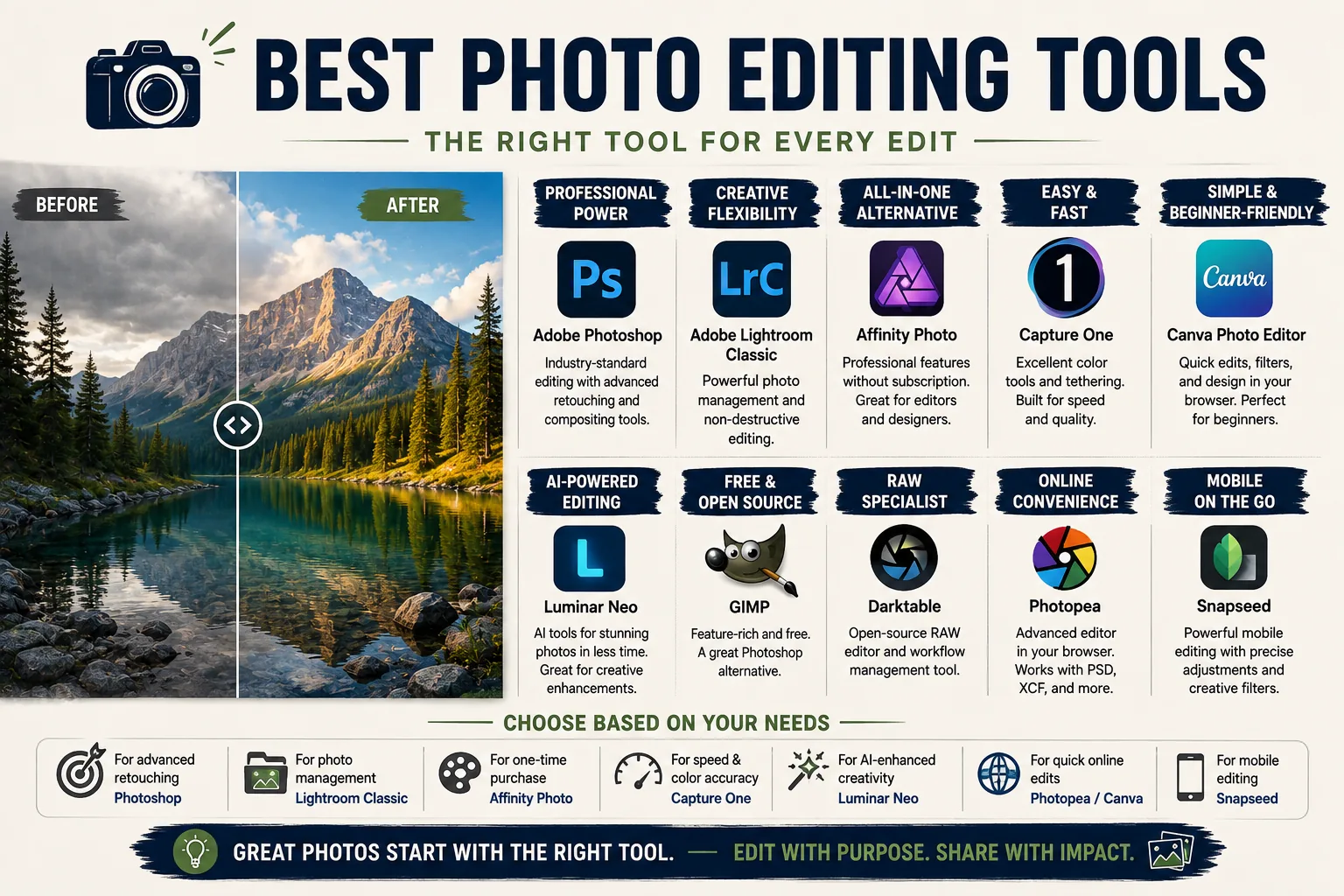
The photo editing market in 2026 divides into four distinct categories, each serving different needs:
Catalog and RAW editors manage large volumes of photographs and apply non-destructive corrections that preserve the original file. Adobe Lightroom and Capture One are the dominant tools here.
Pixel-level editors work on individual images with layer-based compositing, precise retouching, and complex selection masking. Adobe Photoshop is the standard; Affinity Photo 2 is the primary alternative.
AI-assisted editors automate specific tasks - sky replacement, background removal, portrait enhancement - that previously required significant technical skill. Luminar Neo is the leading example.
Social media and design-first tools treat the photograph as a component of a designed output rather than a photographic end product. Canva, VSCO, and Facetune operate in this space.
Understanding which category you need prevents the most common mistake in photo software selection: buying a pixel-level editor when you need a catalog tool, or subscribing to a professional suite when an AI-assisted tool would handle 90% of your work in a fraction of the time.
Professional Catalog and RAW Editing
Adobe Lightroom
Adobe Lightroom is the most widely used photo editing and organization tool among working photographers, with an estimated 25 million users as of 2025.[1]
Core features:
- Non-destructive RAW editing: adjustments are stored as instructions applied to the original file on export, not burned into the file itself. Every edit is reversible indefinitely.
- Masking with AI selection: Subject, Sky, Background, Objects, and People masks are generated automatically. Local adjustments apply to precisely selected areas without manual brush painting.
- Preset system: a single preset applies a full suite of tone, color, and detail adjustments in one click. Presets can be synchronized across an entire shoot.
- Catalog organization: images are organized in a catalog with star ratings, color labels, flags, keywords, collections, and smart collections. Searching across a library of 100,000+ images is fast.
- Batch editing: synchronize edits from one image to hundreds of similar images simultaneously. Editing a 400-image wedding shoot to a consistent look takes minutes rather than hours when done properly.
- Denoise AI: machine learning-based noise reduction that outperforms traditional noise reduction significantly on high-ISO images. A shot at ISO 12800 that previously required significant noise softening now produces usable results with edge and texture detail preserved.
- Cloud sync: Lightroom Classic (desktop-centric) and Lightroom (cloud-centric) both sync across desktop, mobile, and web.
Pricing: $9.99/month for the Photography Plan includes both Lightroom and Photoshop plus 1TB of cloud storage. Lightroom alone is available at a lower tier.
Best for: Any photographer who shoots in RAW format, manages more than a few hundred images, and wants a non-destructive workflow that allows revisiting and reprocessing images years later. Wedding photographers, portrait photographers, travel photographers, and commercial photographers.
Limitations: The Lightroom catalog is not a simple file folder - images must be imported before they can be edited, which adds a step that confuses beginners.
Retouching capability is limited compared to Photoshop: the Healing and Clone tools handle small spots and simple removals, but complex object removal and skin retouching require Photoshop.
The mobile app (Lightroom Mobile) is free with an Adobe account and covers most of the same adjustments, but the catalog sync requires a paid subscription for full functionality.
Capture One
Capture One, developed by Phase One (a Danish camera and software company), is the professional alternative to Lightroom most often cited by commercial and studio photographers as producing superior RAW file rendering.
Core features:
- RAW processing with camera-specific color profiles: Capture One develops calibrated profiles for individual camera models rather than using generic brand profiles.[3] Sony, Fujifilm, and Canon users consistently report more accurate color rendition and better texture detail compared to Lightroom's processing of the same RAW files.
- Layers with luminosity, color range, and gradient masking: adjustments can be applied on separate layers with complex masks that Lightroom's simpler masking system cannot replicate.
- Sessions workflow: for studio photographers who shoot separate client jobs that should be kept entirely independent, Sessions create a self-contained project with its own folder structure and catalog. Lightroom's catalog-based approach merges all images into a single database.
- Tethered shooting: Capture One's tethered capture displays each image within approximately 1-2 seconds of pressing the shutter. The preview speed and reliability are considered industry-leading for studio work.
- Style Brushes: adjustments painted on with a brush, allowing localized effects like HSL corrections or dodge-and-burn workflows within the tool.
- Collaboration: multiple users can access the same catalog or session simultaneously on a network.
Pricing: $24/month subscription or $299 perpetual license (a one-time purchase with free updates for the purchased version version, paid upgrades for new major versions). Camera-specific versions (Sony, Fujifilm, Nikon) are available at lower prices.
Best for: Commercial photographers, studio photographers, and any photographer for whom color accuracy is a professional requirement. The tethering advantage alone justifies Capture One for photographers working on-set with clients reviewing images in real time.
Limitations: The catalog system and organizational workflow are less intuitive than Lightroom for photographers accustomed to Lightroom's approach. The mobile app is significantly less capable than Lightroom Mobile. Learning Capture One after years of Lightroom use requires re-learning assumptions about how the tools work.
Pixel-Level and Layer-Based Editing
Adobe Photoshop
Adobe Photoshop, released in 1990 and now in its thirty-sixth year of continuous development, remains the industry standard for retouching, compositing, and any editing task that requires working at the pixel level.[2]
Core features:
- Layer-based editing: every adjustment, element, and effect lives on a separate layer that can be modified, hidden, or deleted independently. Smart Object layers preserve the original data through any number of transforms and adjustments.
- AI selection tools: Select Subject, Select Sky, and the Object Selection Tool use machine learning to generate accurate masks around complex subjects - hair, fur, transparent objects - in seconds.
- Generative Fill using Adobe Firefly: select an area of the image, describe what should fill it in text, and Photoshop generates photorealistic content that matches the surrounding lighting, perspective, and texture. Extends backgrounds, fills gaps, removes objects with contextually aware replacement.
- Neural Filters: a panel of AI-powered effects including Skin Smoothing, Smart Portrait (adjusts facial expression, gaze direction, and age), Landscape Mixer, and Style Transfer.
- Content-Aware Fill and Content-Aware Scale: remove objects or resize images while the tool automatically fills removed areas with contextually generated content.
- Camera Raw as a plugin: Photoshop includes Adobe Camera Raw, providing the same RAW processing engine as Lightroom as a filter that can be applied non-destructively as a smart filter on a smart object layer.
- Healing Brush, Clone Stamp, and Patch Tool: the retouching toolkit that remains the standard for skin retouching, object removal, and blemish correction.
Pricing: $20.99/month for Photoshop alone. $55/month for Adobe Creative Cloud All Apps. The Photography Plan at $19.99/month includes both Photoshop and Lightroom.
Best for: Retouchers, advertising photographers, composite artists, product photographers who need precise object removal and background compositing, anyone whose deliverables require pixel-level precision.
Limitations: Not designed for photo organization - Photoshop opens individual files, not catalogs of thousands of images. The learning curve is substantial: a photographer transitioning from Lightroom will find Photoshop's layer paradigm requires a significant mental shift.
The subscription model makes Photoshop increasingly expensive over multi-year use compared to one-time alternatives like Affinity Photo 2 ($69.99 one-time).
AI-Assisted Photo Editing
Luminar Neo
Luminar Neo, developed by Skylum, has built a differentiated position in the photo editing market by automating specific workflows that previously required significant skill and time in Lightroom or Photoshop.[4]
Core features:
- Sky Replacement AI: selects the sky in a landscape photograph and replaces it with any sky from an included library or uploaded image. The tool automatically adjusts ground lighting, color temperature, and haze to match the new sky. What required 30-60 minutes of skilled Photoshop masking and color matching now takes approximately 2 minutes.
- Relight AI: adds or modifies three-dimensional lighting on a subject after the photograph is taken. Simulates a fill light being added to a shadowed face without manual dodging and burning.
- Portrait Background Removal: isolates portrait subjects from complex backgrounds using AI segmentation.
- Skin AI: smooths skin texture while using texture preservation algorithms to avoid the plastic-skin effect common in less sophisticated tools.
- Face AI: enhances eyes (iris detail, catchlights, slimming), performs slimming on facial structure, and whitens teeth using individual sliders.
- Structure AI: enhances fine detail in landscapes and architecture without amplifying noise.
- Supersharp AI: uses machine learning to recover sharpness from slightly out-of-focus images.
- Extension compatibility: works as a plugin within Lightroom and Photoshop, so the AI tools are accessible without leaving an existing workflow.
Pricing: $69/year subscription or $149 one-time perpetual license. Extensions (additional AI tools) are purchased separately.
Best for: Landscape photographers who want dramatic skies without waiting for the right light, portrait photographers who need skin retouching faster than manual Photoshop workflows allow, real estate photographers for whom sky replacement in architectural shots is standard practice.
Limitations: AI results require review - sky replacement produces halos and unrealistic edge blending on complex subjects like trees or buildings with intricate detail. Skin smoothing can over-process if maximum values are used. The organizational catalog is less capable than Lightroom.
Performance is slower than Lightroom on comparable hardware.
VSCO
VSCO is simultaneously a photo editing app, a preset library, and a photographer community - a combination that has given it a distinct identity in the mobile editing space since 2012.
Core features:
- Preset library developed in collaboration with analog film manufacturers and photographers, with more than 230 presets organized by aesthetic category
- Film-simulating presets: Fuji 400H, Kodak Portra, Kodak T-MAX, and dozens of others translated to digital adjustments
- HSL color adjustment, tone curves, skin tone control, and vignette on mobile
- VSCO X desktop app: access to the same presets on macOS and Windows
- Community features: follow other photographers, publish to the VSCO profile, discover photographers by style
Pricing: Free tier includes approximately 10 presets and basic adjustments. VSCO membership at $19.99/year unlocks the full preset library, desktop app, and advanced editing tools.[5]
Best for: Photographers who want a consistent, identifiable aesthetic across their Instagram or portfolio, film photography enthusiasts who want the organic quality of analog processing applied to digital images, and mobile-first photographers who prioritize style consistency over technical precision.
Limitations: Not designed for precise technical correction - VSCO's interface is designed around aesthetic exploration rather than histogram-accurate color grading. RAW support is available but the editing panel is simpler than Lightroom Mobile.
Mobile and Social Media Photo Tools
Snapseed
Snapseed, developed by Nik Software and acquired by Google in 2012, remains one of the most capable free photo editing apps available on any platform.[6]
Core features:
- Selective adjustment: a brush tool that allows painting adjustments (exposure, contrast, saturation, warmth) onto specific areas of an image on mobile, simulating Lightroom's masking workflow with a touchscreen
- Healing tool: removes objects and blemishes using context-aware fill
- Full RAW support for most common camera formats on iOS and Android
- Non-destructive stack: individual adjustments are recorded in a stack that can be opened, modified, or removed at any time
- Looks: a preset system covering moody, film, portrait, and landscape styles
- Expand: uses AI-generated content to extend the canvas of an image beyond its original borders
- Tune Image: global exposure, contrast, highlights, shadows, and white balance controls
Pricing: Free on iOS and Android. No paid tier, no subscription, no watermark.
Best for: Mobile photographers who need serious editing control without paying anything. The Selective tool and healing brush put Snapseed's capability well above other free mobile apps.
Limitations: No desktop version - entirely mobile. No catalog or organizational features beyond the phone's camera roll. Export options are limited to JPEG.
Canva Photo Editor
Canva's photo editing tools are built into a platform whose primary identity is graphic design for non-designers, which shapes how the photo tools work.
Core features:
- Background Remover: AI-powered background removal available in the free tier (with usage limits) and unlimited in Pro
- Smart Mockup: places photos inside product mockups, frames, and devices for presentation
- Photo filters and basic adjustments (brightness, contrast, saturation, blur)
- Magic Expand: extends the canvas of a photo with AI-generated content matching the original
- Magic Eraser: removes objects from photos
- Photo frames and shape masks for designed layouts
- Direct publishing to all major social media platforms
Pricing: Free tier covers most basic use. Canva Pro at $14.99/month unlocks unlimited background removal, full Brand Kit, premium templates, and additional AI tools.[7]
Best for: Content creators, small business owners, and social media managers who use photographs as components of designed posts rather than as standalone photographic works. If the primary output is a designed graphic that includes a photograph, Canva is faster than moving between a photo editor and a design tool.
Limitations: Not designed for photographic color accuracy - adjustments are broad rather than precise. Not a replacement for Lightroom or Photoshop for photographers who care about the integrity of their image's color and tone. The photo editing tools are secondary to the design tools.
Specialized and Single-Purpose Tools
Remove.bg
Remove.bg does exactly one thing: removes the background from a photograph using AI segmentation.[9]
Core features:
- One-click background removal with no manual masking
- API access for automated integration into e-commerce pipelines, Shopify apps, and custom workflows
- Batch processing
- Edge refinement controls for fine-tuning results on complex subjects
Pricing: Free for low-resolution (up to 50x50 pixel) preview downloads. $9/month for full-resolution single images, $9/month for 40 full-resolution downloads in a credit package. API pricing based on volume.
Best for: Anyone who needs background removed from photographs quickly and at scale. Integration via API makes Remove.bg useful in automated product photography pipelines where images move from photographer to listing without human post-processing.
Limitations: Struggles with transparent, reflective, or highly textured edges - glass, glitter, lace, and fur produce inconsistent results. The tool does one thing, so it must be paired with other tools for color correction, resizing, and placement.
Facetune
Facetune is a portrait-specific retouching app that has become the standard tool for selfie and portrait editing on social media.[10]
Core features:
- Skin smoothing and blemish removal with texture-preservation controls
- Teeth whitening and eye brightening
- Background blur and defocus
- Face and body reshaping
- Lighting adjustments specific to portrait photography
- Video retouching in addition to photos
Pricing: $5.99/month or $32.99/year.
Best for: Portrait-focused social media creators who want polished, retouched images. Widely used by lifestyle influencers, models, and personal brands where portrait presentation is central to the visual identity.
Limitations: The aesthetic produced by Facetune at high settings is increasingly recognizable to audiences accustomed to social media images. Over-retouching creates an uncanny, unrealistic appearance that sophisticated viewers identify immediately. Used subtly, Facetune is effective; used heavily, it undermines authenticity.
Pixlr
Pixlr is a browser-based photo editor that provides a Photoshop-like layer editing experience without requiring software installation.
Core features:
- Pixlr E: advanced mode with layer support, blending modes, and a tool panel similar to Photoshop[11]
- Pixlr X: simplified mode for quick edits and collages
- AI background removal and cutout tools
- Template library for social media and design formats
- Batch editing in Pixlr E
Pricing: Free tier with ads and watermark on some exports. Premium at $7.99/month removes ads and provides additional tools. Plus tier at $14.99/month adds AI features and expanded storage.
Best for: Users who need layer-based editing and cannot access Photoshop, editing on a computer without the ability to install software (school computers, shared workstations), and anyone who needs an occasional Photoshop-like tool without a subscription commitment.
Limitations: Performance is browser-dependent and slower than desktop applications. RAW file support is limited. The free tier watermark can appear on exports.
Photoroom
Photoroom is purpose-built for e-commerce product photography and has become the leading tool for sellers who need professional product images without a professional photography studio.
Core features:
- AI background removal with batch processing: upload 100 product images, receive all of them with backgrounds removed simultaneously
- AI-generated replacement backgrounds: type a description ("natural wood surface with soft light" or "white studio backdrop with shadow") and Photoroom generates a contextually appropriate background[8]
- Brand kit: saves approved backgrounds, logo placement, and image dimensions for consistency across all product listings
- Auto-resize: automatically exports the same image at Amazon, Shopify, Etsy, and eBay dimensions
- Shadow generation: adds realistic drop shadows to products photographed against a removed background
- Magic Brush for manual edge refinement on complex product shapes
Pricing: Free tier with limited exports and Photoroom watermark. Individual Pro at $13/month. Business at $29/month includes team features and higher batch volumes.
Best for: E-commerce sellers, Etsy and Shopify store owners, Amazon FBA sellers, and product photographers handling multiple SKUs who need consistent professional-looking product images without building a full photography studio.
Limitations: AI background removal handles most products well but struggles with transparent products (clear bottles, glasses), highly reflective surfaces (mirrors, polished metal), and products with complex fine edges (jewelry chains, mesh fabric). These categories still require manual masking in Photoshop.
Comparison Table
| Tool | Price | Platform | Best For | Technical Level |
|---|---|---|---|---|
| Lightroom | $9.99 month | Desktop + Mobile | RAW editing, large photo libraries | Intermediate |
| Photoshop | $20.99 month (or CC $55) | Desktop | Retouching, compositing | Advanced |
| Capture One | $24 month or $299 one-time | Desktop | Studio, commercial, RAW accuracy | Advanced |
| Luminar Neo | $69 year or $149 one-time | Desktop | AI sky replacement, portrait AI | Beginner to Intermediate |
| VSCO | Free / $19.99 year | Mobile + Desktop | Film presets, Instagram aesthetic | Beginner |
| Snapseed | Free | Mobile | Professional mobile editing | Intermediate |
| Canva | Free / $14.99 month | Web + Mobile | Social media graphics | Beginner |
| Pixlr | Free / $7.99 month | Web | Layer editing without Photoshop | Intermediate |
| Remove.bg | Free / $9 month | Web | Background removal only | Beginner |
| Facetune | $5.99 month | Mobile | Portrait retouching | Beginner |
| Photoroom | Free / $13 month | Web + Mobile | E-commerce product photos | Beginner |
Building a Photo Editing Workflow
The most common mistake in photo tool selection is choosing based on capability ceiling rather than daily workflow fit.
Photoshop is more capable than Snapseed in almost every dimension, but a travel photographer editing on an iPhone who downloads Photoshop for iPad will spend the first week learning layer management rather than editing photographs.
Workflow by creator type:
For the social media photographer who shoots on an iPhone and posts to Instagram, the stack that minimizes friction: Snapseed for adjustments and healing, VSCO for preset-based aesthetic consistency. Total cost: $19.99/year for VSCO, or $0 if Snapseed alone covers the aesthetic needs.
For the semi-professional portrait photographer shooting on a DSLR or mirrorless camera with RAW files: Lightroom for culling, organizing, and base color across the shoot, Photoshop for retouching hero images. Total cost: $19.99/month for the Photography Plan covering both tools.
For the e-commerce seller who photographs products: Lightroom for color accuracy and batch correction, Photoroom for background removal and replacement at scale, Photoshop for complex edge work on problematic products. Total cost: approximately $23/month.
For the professional commercial photographer working in studio with clients: Capture One for tethering, color accuracy, and session-based organization, Photoshop for retouching and compositing. Total cost: approximately $45/month.
The AI tools question: Luminar Neo, Photoroom, Remove.bg, and similar AI-powered tools automate specific tasks that previously required significant skill. They are most valuable when the automated result is 80-90% of the way to the desired output with minimal refinement needed.
Sky replacement in Luminar Neo produces this result for most landscape photographs. Portrait skin retouching in Facetune produces this result for most portrait photographs.
They are least valuable when the subject matter falls outside the AI's training data - complex edge cases, unusual product shapes, highly stylized artistic requirements. In those cases, manual Photoshop work remains the only reliable path.
See also: Design Tools Explained, Writing Tools Compared, and Productivity Tools Compared.
Sources & Further Reading
- Adobe. "Lightroom: Organize, edit, and share photos." adobe.com.
- Adobe. "Photoshop: Image editing and design." adobe.com.
- Capture One. "The professional photo editing software." captureone.com. View source
- Skylum. "Luminar Neo AI Photo Editor." skylum.com. View source
- VSCO. "Create and discover." vsco.co. View source
- Google. "Snapseed." apps.apple.com. View source
- Canva. "Canva Photo Editor." canva.com. View source
- Photoroom. "Product photo editing software." photoroom.com. View source
- Remove.bg. "Remove Background from Image for Free." remove.bg. View source
- Facetune. "Facetune: Photo & Video Editor." facetuneapp.com. View source
- Pixlr. "Free Online Photo Editor." pixlr.com. View source