
Priya runs marketing for a mid-sized e-commerce company. When she joined, she inherited a Canva Pro account and immediately understood why her predecessor had chosen it: the templates were fast, the interface required almost no training, and she could hand access to any intern and get usable social graphics the same day.
For two years this worked. Then she started noticing something uncomfortable during a quarterly review. She was looking at a competitor's Instagram feed alongside her own, and the visual similarities were striking - not because either company had copied the other, but because both were clearly working from the same template library.
The fonts were different, the brand colors were different, but the underlying structure of every post had that unmistakable Canva geometry. She searched for the specific template she recognized and found it. Her competitor was using the same one.
That was an aesthetic problem. The structural problem came six months later when the company launched a new product line and needed a full print run: tri-fold brochures, posters, shelf talkers, and a sell sheet for wholesale buyers.
The print shop they used for production quoted the job, received the Canva-exported PDFs, and called back with a list of issues. The files lacked proper bleed. The resolution in some elements was insufficient for large-format output.
The color profile was RGB rather than CMYK. The print shop's pre-press team could fix the issues for an additional charge, or Priya could export corrected files.
She spent two days going back and forth on the corrections, learning in the process that Canva's print support required careful configuration that the templates did not surface or explain. The job got done, but the experience revealed a ceiling she had not known existed.
She is representative of a large and growing category of Canva users: people who adopted the tool because it was genuinely the right choice at a particular stage, and who have hit real limitations as their design requirements have matured.
Canva solved a real problem brilliantly and continues to solve it for millions of users. The question is whether it is still the right tool once those requirements change.
"Canva is an excellent answer to the question: how do I make something that looks designed without knowing how to design? It is a less good answer to the question: how do I make something that looks like no one else's thing?"
Why People Look for Canva Alternatives
Canva built its success by removing barriers to entry in graphic design. The flip side of removing barriers is that everyone enters through the same door.
The template recognition problem. Canva's template library has been the product's core selling point since launch. The templates are well-designed, professionally proportioned, and easy to customize. They are also widely used.
A significant portion of social media content, presentation decks, and marketing materials produced by small businesses and independent creators in any given week comes from Canva templates with swapped colors and logos.
For individual creators and small organizations, this is fine. For brands where visual differentiation matters, it is a genuine problem.
Limited vector tools. Canva includes basic shape and line tools but is not a vector editing environment. You cannot create or edit bezier curves, manipulate anchor points, trace raster images to vector, or build complex illustrations.
For design work that goes beyond arranging templates and placing photos, Canva reaches its limit quickly. Professional brand work - logo design, icon creation, custom illustration - requires a tool built for vector editing.
Pro paywall on core features. The free tier is genuinely useful for casual design, but the features that matter most for professional use are behind the Pro subscription at $14.99/month or Teams at $29.99/month per user.
Background removal, AI image generation (Magic Media), brand kits with custom fonts and color palettes, and the premium template library all require Pro. For an individual user the cost is reasonable. For teams of ten or more it is a significant line item.
Print production limitations. Canva can export print-ready PDFs if you configure the settings correctly, but the process is not straightforward, the RGB-to-CMYK conversion is automated and imprecise, and professional print shops frequently flag Canva files.
For organizations producing commercial print materials regularly, the back-and-forth with pre-press teams adds cost and time.
No design system support. Canva has no concept of components, design tokens, or developer handoff specifications. It is not connected to any development workflow. For product teams that need design tools to communicate with engineers, Canva is a dead end.
AI features are add-on rather than integrated. Canva's AI tools - Magic Write for text generation, Magic Media for image generation, Magic Eraser for object removal - are useful but feel bolted on rather than native to the design workflow. Competitors have built AI more deeply into their editing environments.
Adobe Express
Adobe Express is Adobe's consumer-facing design tool, positioned directly against Canva as a template-driven graphic creation platform. It integrates with the Adobe Creative Cloud and uses Adobe's Firefly AI model throughout the product.
Features: Template library spanning social graphics, presentations, flyers, logos, and video clips. Adobe Fonts access provides thousands of high-quality typefaces. Firefly-powered AI tools include text-to-image generation using commercially licensed training data, generative fill for editing existing images, and background removal.
Direct integration with Photoshop, Illustrator, and Lightroom files. Animated social graphics with export to GIF and MP4. Brand kit for saving colors, fonts, and logos. PDF editing including form creation and annotation. Available on web, iOS, and Android.
Pricing: Free tier includes core templates, limited Adobe Fonts, and basic AI features. Adobe Express Premium is $9.99/month (or included in Creative Cloud All Apps at $59.99/month). Teams pricing is $22.99/month for up to 10 users.
Pros vs Canva: Firefly AI image generation is commercially safe because the training data is licensed - relevant for organizations that need to use AI-generated content in commercial materials without licensing risk. Adobe Fonts library is deeper and higher quality than Canva's type selection.
Native integration with Photoshop and Illustrator for users who use both consumer and professional Adobe tools. Premium price is lower than Canva Pro ($9.99 vs $14.99).
Cons vs Canva: Template library is smaller and less varied than Canva's. The interface is slightly less polished for total design beginners. Less community-created template content.
Best for: Users already in the Adobe ecosystem, organizations that need commercially safe AI-generated image content, and designers who want to move assets between Express and professional Adobe tools.
Figma
Figma is a browser-based design tool built for UI/UX and product design teams. It is not a direct Canva replacement for marketing graphics but is a far more powerful tool for organizations that need collaborative design with development connections.
Features: Vector editing with full bezier curve support, anchor point manipulation, and boolean operations. Component system with nested components, variants, and design tokens. Auto layout for responsive design that adapts to content changes.
Real-time multiplayer editing with cursor presence, comments, and version history. Developer handoff with inspect mode showing CSS properties, spacing, and asset export specifications. Figma's FigJam whiteboarding tool is included.
Prototype linking for interactive presentations. Plugin ecosystem with hundreds of extensions for icon libraries, stock photos, and workflow tools.
Pricing: Free tier for individuals (unlimited personal files, 3 projects). Professional plan $15/user/month (unlimited projects, shared libraries, version history). Organization plan $45/user/month (enterprise SSO, advanced admin).
Pros vs Canva: The most advanced collaboration model in any design tool in this comparison. Connects directly to development workflows. Full vector editing without the limitations of Canva's shape tools. Design system support with components that maintain consistency at scale.
Cons vs Canva: Steeper learning curve. Not suited to quick marketing graphic creation for non-designers. Template library focuses on UI kits rather than social media and marketing materials. Overkill for users who just need to make a flyer.
Best for: Product and UX design teams building digital products. Organizations that need design to connect to software development. Teams that require genuine design system management.
Visme
Visme is a design tool built specifically for data communication: infographics, presentations, reports, and interactive visual content for business audiences.
Features: Data visualization with connection to Google Sheets, CSV import, and automatic chart updates when underlying data changes. Interactive content with hover effects, clickable navigation, and embedded forms. Animation tools for building animated infographics and presentations.
Presentation mode with presenter notes and live analytics showing viewer engagement. Template library focused on business content: annual reports, case studies, dashboards, statistical summaries, and process diagrams.
Brand kit for maintaining design consistency. Embed code for publishing interactive content directly on websites. Available on web with iOS companion app.
Pricing: Free tier (5 projects, Visme branding on exports). Starter $29/month (unlimited projects, brand kit, most features). Pro $59/month (custom domain, advanced analytics, viewer tracking). Teams pricing starts at $199/month for 3 users.
Pros vs Canva: Data visualization tools are genuinely more capable, especially for business presentations with live data. Interactive and animated infographics go beyond Canva's capabilities. Viewer analytics on published content provide insight Canva does not offer.
Cons vs Canva: Higher pricing tier. Less suited to quick social media graphic production. Template library is narrower - strong for business data communication, weaker for general marketing graphics. The interface has more complexity than casual users need.
Best for: Marketing teams and business analysts who regularly create data-driven presentations, infographics, and reports. Organizations that need interactive and animated visual content embedded on websites.
Piktochart
Piktochart is focused on infographics, reports, and data visualizations for professional contexts. It occupies a narrower niche than Visme with a correspondingly simpler interface.
Features: Infographic templates organized by type: statistical infographics, timeline infographics, comparison charts, process diagrams. Report templates for annual reports, research summaries, and project updates. Presentation templates. Chart builder with import from spreadsheets.
PDF and PNG export with quality settings. Brand kit on paid plans. A Piktochart Video tool for turning scripts into narrated videos is available as a separate product. Available on web.
Pricing: Free tier (limited templates, Piktochart branding). Pro $29/month (unlimited projects, all templates, no branding, brand kit). Team pricing available.
Pros vs Canva: More focused infographic template library than Canva's. Chart import from spreadsheets is faster for data-heavy work than Canva's manual chart builder. Report templates are designed for professional document output rather than social sharing.
Cons vs Canva: Narrower scope than both Canva and Visme. Limited social media and marketing graphic templates. Less investment in AI tools compared to more recent Canva updates.
Best for: Professionals who primarily need to create infographics and data reports rather than broad marketing graphics. A focused, lower-learning-curve alternative to Visme for simpler data visualization work.
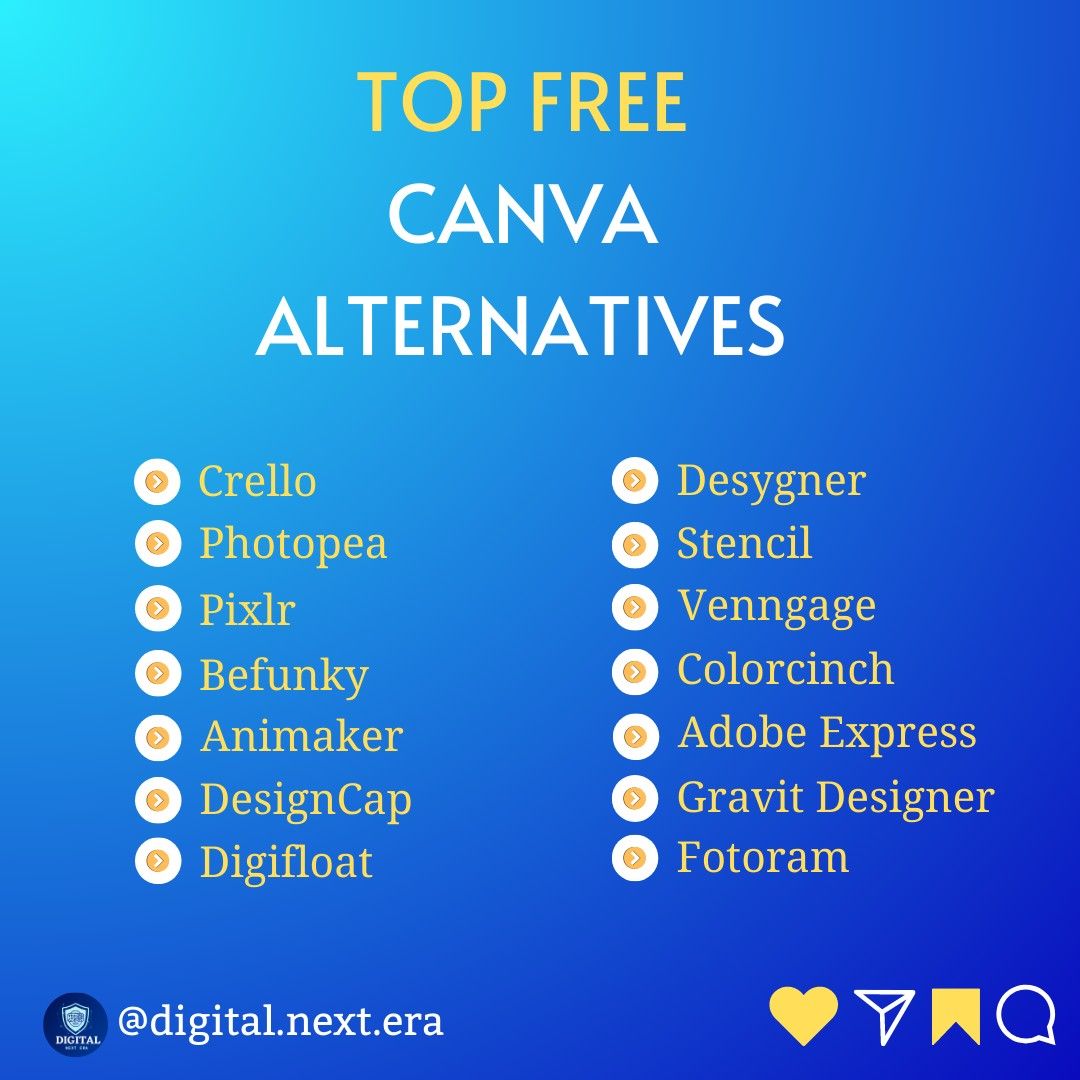
VistaCreate (formerly Crello)
VistaCreate is the most direct like-for-like Canva competitor on this list. It was built as a template-driven design tool for social media, marketing, and general visual content creation, with a template library that now exceeds 50,000 designs.
Features: 50,000+ professionally designed templates across social media formats, presentations, marketing materials, and print. Extensive stock photo, video clip, and music library included. Animated design templates for video social content.
Background remover. Brand kit for saving brand elements. Team collaboration features. Available on web, iOS, and Android.
Pricing: Free tier (many templates accessible, brand kit limited). Pro $13/month (full template library, unlimited brand kits, premium assets). Teams pricing per user.
Pros vs Canva: Template library is comparable in size and quality. Free tier is slightly more generous than Canva's equivalent. Pricing is equal or lower. Extensive built-in animated template library for video social content.
Cons vs Canva: Smaller user community and fewer third-party resources (tutorials, community templates). AI tools are less developed than Canva's Magic suite. Less brand recognition means less community support for troubleshooting.
Best for: Canva users who want a nearly identical design experience with comparable templates and lower or equal pricing. A straightforward swap for anyone who has hit the Canva Pro paywall and wants to evaluate alternatives.
Snappa
Snappa is a streamlined graphic creation tool for social media, ads, and marketing content. Its value proposition is simplicity and unlimited downloads rather than feature breadth.
Features: Template library for social media formats, display ads, blog headers, and email graphics. Stock photo library of over 5 million photos included with subscription. Background remover. Simple resize tool for adapting a design across multiple formats. Shared team accounts on paid plans. Available on web.
Pricing: Free tier (5 downloads/month, 1 user). Pro $15/month (unlimited downloads, 1 user, all features). Team $30/month (unlimited downloads, up to 5 users, shared folders).
Pros vs Canva: Unlimited downloads on the Pro plan remove the export friction of Canva's free tier. Simpler interface with less feature complexity for users who only need marketing graphics. Team pricing is significantly lower than Canva Teams for small groups.
Cons vs Canva: Smaller template library. Less feature depth - no video content, limited animation, no AI generation tools. Not suitable for presentations, infographics, or print materials. The product has seen limited feature development compared to Canva.
Best for: Social media managers and marketers who need high-volume social graphic production without per-download friction. Small teams that need shared graphic creation without paying per-user Canva Teams pricing.
Desygner
Desygner is a web and mobile design tool with stronger print support than Canva and a focus on brand consistency for marketing teams and small businesses.
Features: Template library for social media, marketing materials, and print. Print-ready PDF export with bleed marks and CMYK color mode. Brand kit with fonts, colors, and logo management.
Team management with approval workflows - designers can set templates that team members can edit within defined boundaries. QR code generator. Available on web, iOS, and Android.
Pricing: Free tier (basic templates, Desygner branding). Pro $9.95/month (all templates, brand kit, print-ready PDF). Business $36/month (team management, approval workflows, custom templates).
Pros vs Canva: Print-ready PDF export with proper bleed and CMYK support is more reliable than Canva's print output. Lower Pro pricing ($9.95 vs $14.99). Approval workflow for brand management is useful for franchise and multi-location businesses.
Cons vs Canva: Smaller template library and stock asset collection. Less investment in AI features. Less polished interface. Smaller user community.
Best for: Small businesses and marketing teams that need reliable print output alongside digital content creation. Franchise operations and multi-location businesses that need brand-controlled templates with approval workflows.
Affinity Publisher
Affinity Publisher is a professional desktop publishing application for Mac, Windows, and iPad. It is the non-subscription alternative to Adobe InDesign for professional print layout work.
Features: Full professional print layout with master pages, paragraph and character styles, and document grids. CMYK color mode with ICC profile support. Print-ready PDF export with bleed, crop marks, overprint preview, and press quality settings.
Linked images with update-on-change workflow. Table of contents generation, index building, and book features for long documents. Integration with Affinity Photo and Affinity Designer for embedded image and vector editing without leaving the layout. Preflight tool for checking documents before sending to print.
Pricing: One-time purchase $69.99 (perpetual license, no subscription). Available separately or as part of the Affinity suite bundle with Affinity Photo and Affinity Designer.
Pros vs Canva: Professional print output without the workarounds required by Canva. CMYK support and preflight checking produce files that meet commercial print shop specifications. One-time purchase cost eliminates the ongoing subscription expense.
Cons vs Canva: Desktop application only - no browser-based access. Steep learning curve for users without prior experience in layout software. No template library for quick starts. Not suitable for social media or marketing graphic production.
Best for: Designers, publishers, and marketing teams that regularly produce print-ready documents - brochures, catalogs, books, magazines, event programs - and need professional output quality without Adobe's subscription model.
Microsoft Designer
Microsoft Designer is a free AI-powered design tool integrated into the Microsoft 365 ecosystem. It uses DALL-E image generation and AI layout suggestions to create graphics from text prompts.
Features: AI image generation using DALL-E produces original images from text descriptions. AI layout suggestions create design options from uploaded images and text. Template library for social posts, presentations, invitations, and marketing materials.
Integration with Microsoft 365 and OneDrive. Background remover. Brand kit. Export to PNG and PDF. Available on web and as a Windows app, with mobile apps.
Pricing: Free with a Microsoft account. Premium features available with Microsoft 365 subscription.
Pros vs Canva: Free with a Microsoft account - no separate subscription required for users already in the Microsoft ecosystem. DALL-E integration for generating custom images from text. AI layout suggestions reduce the design decision workload for non-designers.
Cons vs Canva: Template library is smaller and less varied than Canva. The AI-first workflow suits certain use cases and produces inconsistent results for others. Less suitable for high-volume content production where human-controlled template customization is faster. Not suitable for print work.
Best for: Microsoft 365 users who want free design capabilities without a separate Canva subscription. Non-designers who want AI to make layout decisions from minimal input.
Photopea
Photopea is a free browser-based image editor that closely replicates Photoshop's interface and feature set. It is not a template-driven design tool like Canva but a layered image editor for more technical design work.
Features: Opens and saves PSD, XCF, and Sketch files. Full layer support including adjustment layers, layer masks, smart objects, and blend modes. Selection tools including lasso, magic wand, and quick selection. Text tool with character and paragraph styles.
Filter library including blur, distort, and stylize filters. Pen tool for vector path creation. Content-aware fill for removing objects. Smart guides and alignment tools. Export to PSD, JPG, PNG, SVG, and PDF. No installation required - runs entirely in browser.
Pricing: Free with ads. Premium $9/month removes ads and adds some cloud features.
Pros vs Canva: Professional-grade layered editing that Canva cannot approach. Opens PSD files from Photoshop, enabling round-trip workflows with professional design teams. No installation, no subscription, no account required for basic use.
Cons vs Canva: No template library for quick starts. High learning curve for users without Photoshop background. Not suitable for quick social media graphics without prior design skill. AI tools are absent.
Best for: Users who need Photoshop-style layered editing without a subscription. Designers who work with PSD files and need a free, browser-accessible alternative for occasional editing. People transitioning away from Photoshop who are not ready to pay for Affinity Photo.
Comparison Table
| Tool | Monthly price | Platform | Print-ready | Vector | Templates | AI tools | Collaboration |
|---|---|---|---|---|---|---|---|
| Canva | $0-14.99 | Web/iOS/Android | Limited | No | 600,000+ | Yes (Pro) | Yes |
| Adobe Express | $0-9.99 | Web/iOS/Android | Limited | No | Large | Yes (Firefly) | Limited |
| Figma | $0-15/user | Web/Desktop | No | Yes | UI-focused | Limited | Yes |
| Visme | $0-59 | Web/iOS | No | No | Business-focused | Limited | Yes |
| Piktochart | $0-29 | Web | No | No | Infographic-focused | No | Limited |
| VistaCreate | $0-13 | Web/iOS/Android | Limited | No | 50,000+ | Limited | Yes |
| Snappa | $0-15 | Web | No | No | Mid-size | No | Limited |
| Desygner | $0-9.95 | Web/iOS/Android | Yes | No | Mid-size | No | Yes |
| Affinity Publisher | $69.99 one-time | Desktop | Yes (pro) | Yes | None | No | No |
| Microsoft Designer | Free | Web/Windows | No | No | Mid-size | Yes (DALL-E) | Limited |
| Photopea | Free | Web | Limited | Yes | None | No | No |
Who Should Switch and Who Should Stay
Stay with Canva if: You use Canva regularly and the template library meets your needs. You are producing social media graphics, presentations, and marketing materials without print production requirements. Your team is established on Canva and the collaboration workflows work.
The AI tools in Canva Pro are part of your workflow and the value justifies the cost.
Switch to Adobe Express if: You are already in the Adobe ecosystem and want better integration with Photoshop and Illustrator. Commercially safe AI image generation matters for your use case. The lower Pro price ($9.99 vs $14.99) makes a material difference.
Switch to Figma if: Your team builds digital products and needs design to connect to development. You need a real component system and design tokens. Collaboration with engineers is part of the workflow.
Switch to Visme if: Your primary output is business presentations and data-driven infographics. You need charts that update from live data. Viewer analytics on published content matter.
Switch to VistaCreate if: You want a near-identical Canva experience with slightly lower pricing. The template library overlap is high enough that transition is low-friction.
Switch to Affinity Publisher if: You regularly produce commercial print materials and Canva's print output has caused problems with print shops. You want a one-time cost rather than ongoing subscription.
Switch to Desygner if: Print support is a specific need and Affinity Publisher's learning curve is too steep. The approval workflow for brand management is relevant to your organization.
Use Photopea if: You need Photoshop-style layered editing free of charge and are comfortable with a professional interface.
The honest assessment: Canva remains the right tool for most casual and semi-professional design needs. Its template library, ease of use, and free tier are unmatched for users who need to produce competent visual content quickly.
The alternatives above are not better tools in any absolute sense - they are better tools for specific use cases that Canva serves poorly: professional print work, data visualization, design system management, and layered image editing. Know which category your work falls into before switching.
See also: Best Alternatives to Photoshop for Photo Editing | Best Graphic Design Tools in 2026 | Best AI Tools for Creators